Step 1: Find the text with the link
John or an admin texts you the Lab Signal link.
It looks like this: lab-float-assist.pages.dev
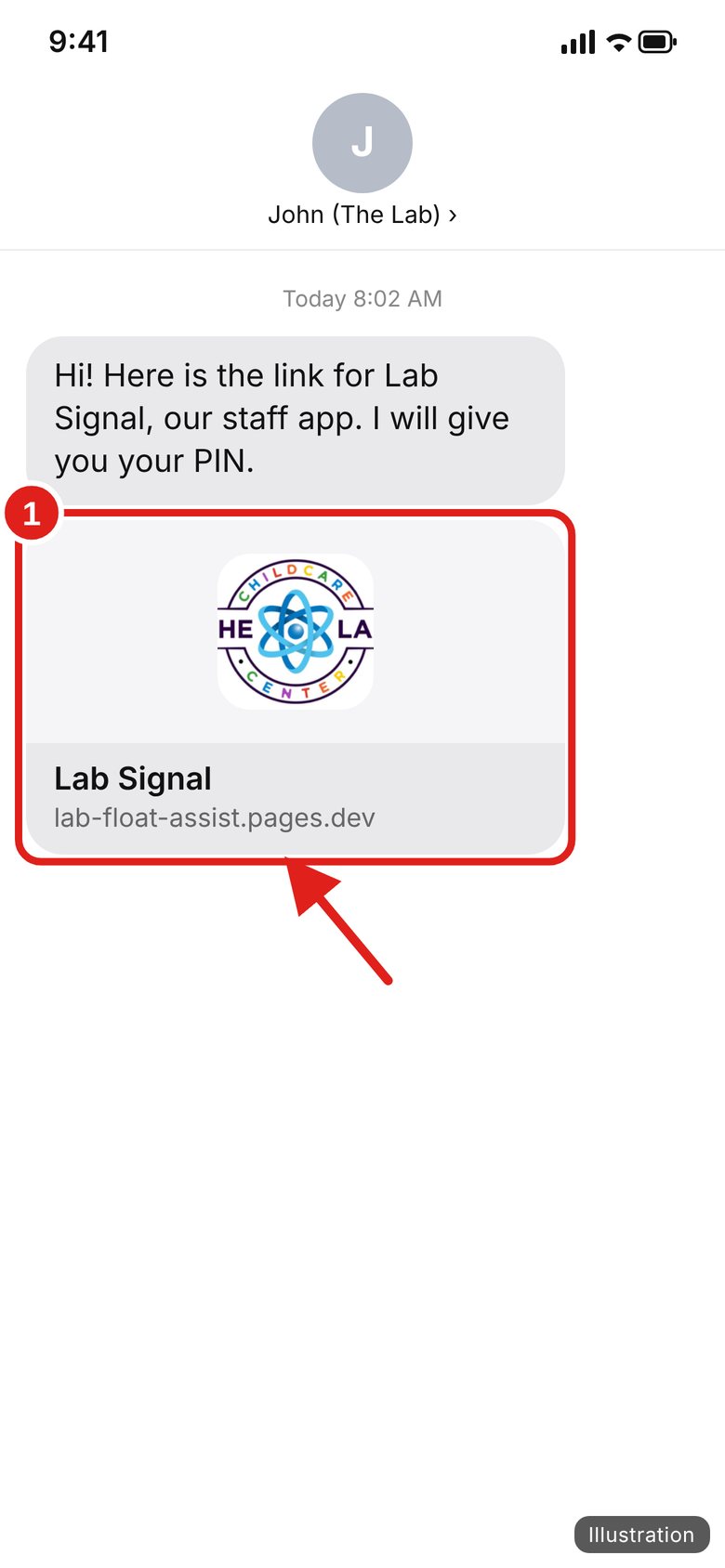
Illustration — your screen may look a little different.

How to get in and use our staff app, step by step.
Tap a topic below to jump to it. Red circles on the pictures show where to tap. Pictures marked “Illustration” are drawings of your phone’s own screens; other pictures are real Lab Signal screens with made-up names.
Lab Signal is The Lab’s staff app. It works in your phone’s web browser — there is nothing to download from the App Store.
Use it to check in to your room, ask for help, initial the opening and closing list, read messages from the office, and see your schedule.
Brightwheel: Lab Signal does not replace Brightwheel. Keep clocking in and out in Brightwheel like you always do.
Your PIN is private. Don’t share it or write it where others can see it. The same PIN works everywhere in Lab Signal.
You only do this once.
John or an admin texts you the Lab Signal link.
It looks like this: lab-float-assist.pages.dev
Illustration — your screen may look a little different.
On iPhone it opens in Safari. On Android it opens in Chrome.
You will see the Lab Signal sign-in page.
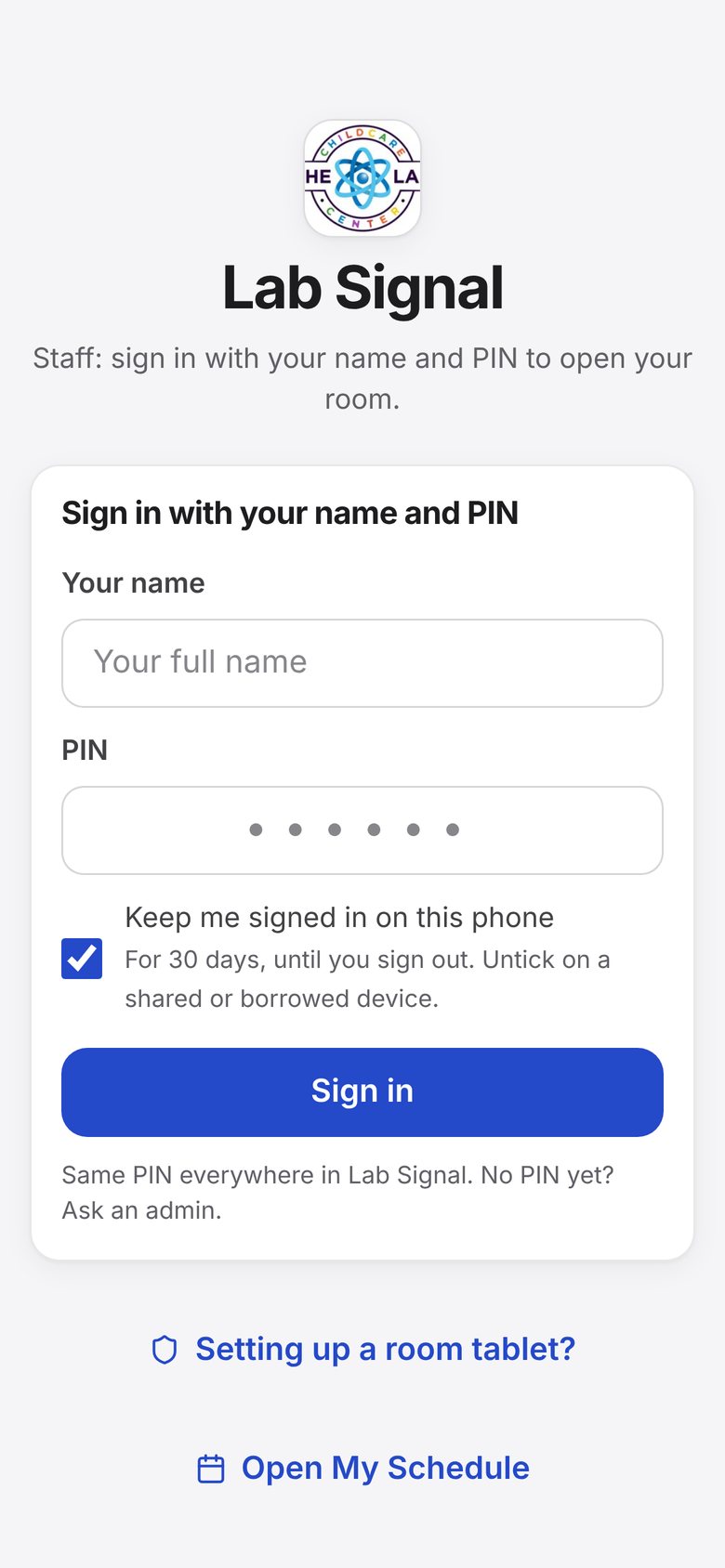
Do this once, on the Lab Signal sign-in page (the page that opened from the text) — not on this guide. Then Lab Signal opens like an app, and it can send you alerts. iPhone: use Safari. Android: see the Android box at the end of this section.
At the bottom of Safari, tap the three dots (•••) next to the web address.
Tip: Older iPhone? You may see a Share button (a square with an arrow pointing up) at the bottom instead. Tap it and go to step 3.
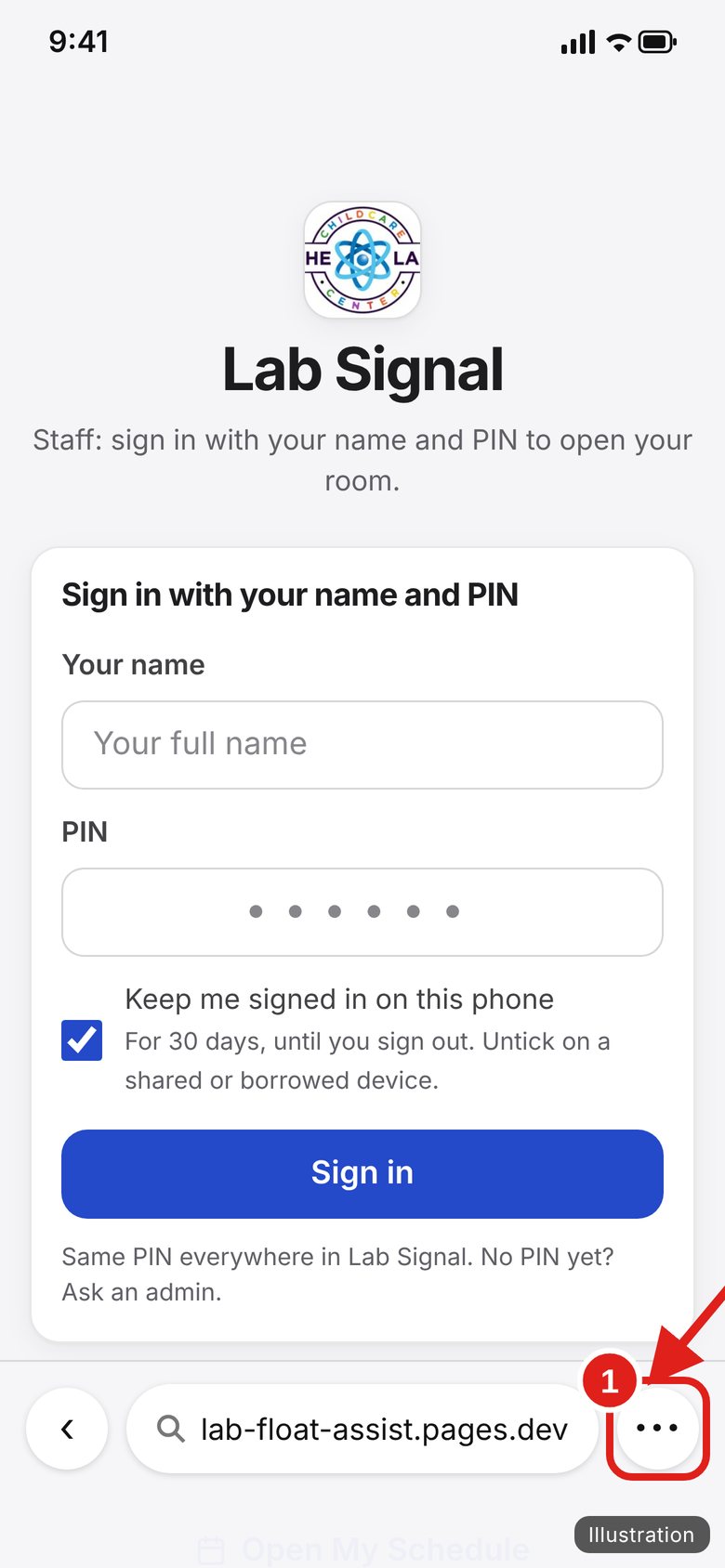
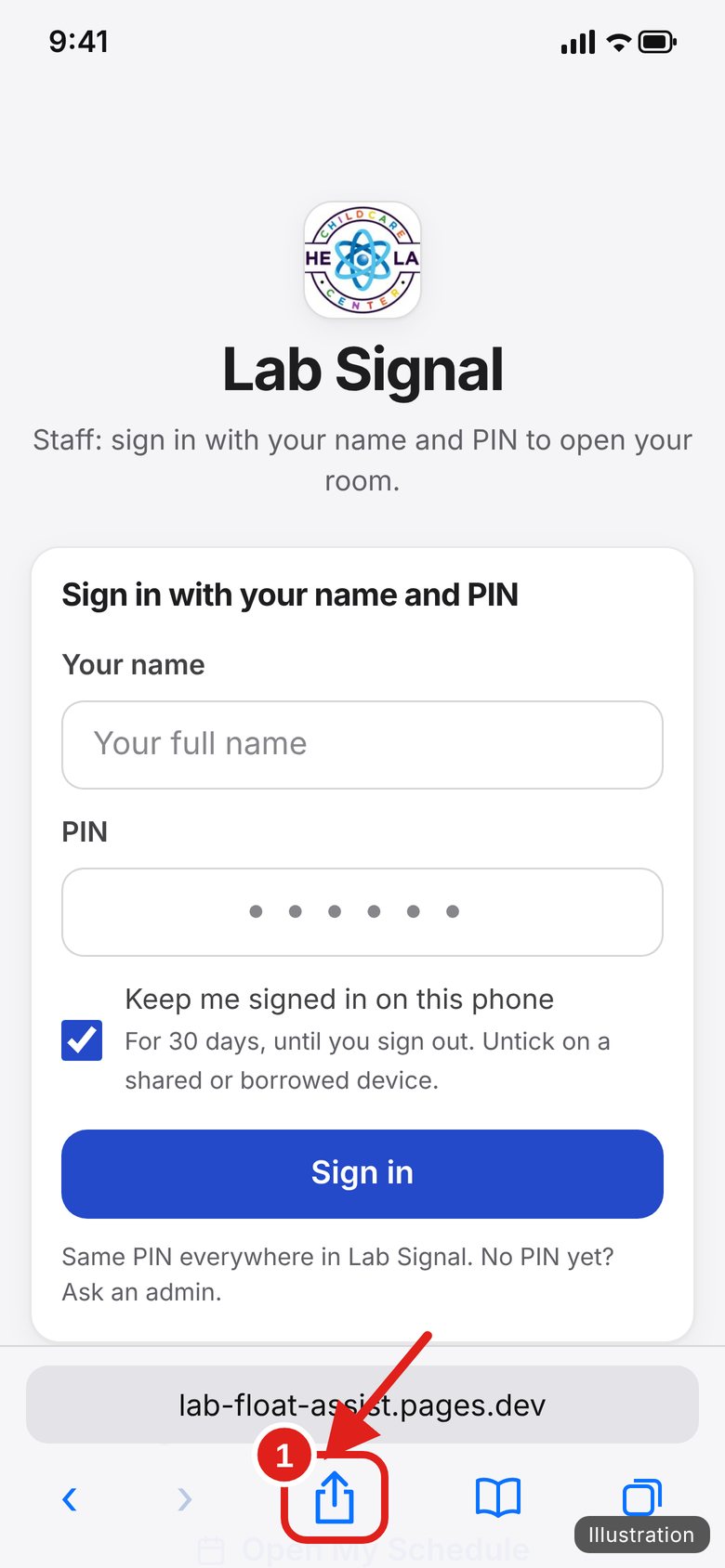
Illustration — your screen may look a little different.
A menu opens. Tap Share.
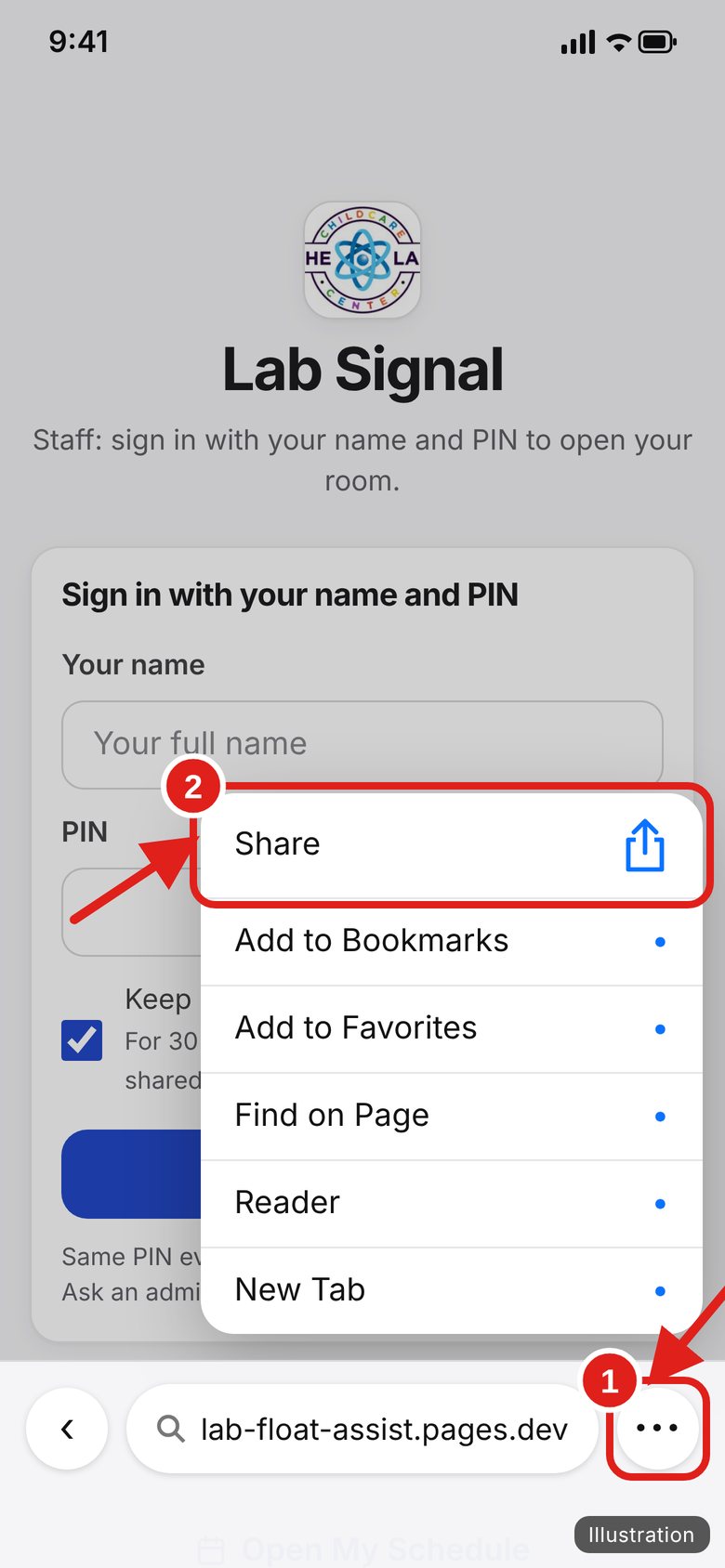
Illustration — your screen may look a little different.
Scroll down the list.
Tap Add to Home Screen.
Tip: Don’t see it? Scroll to the very bottom, tap Edit Actions, then add “Add to Home Screen”.
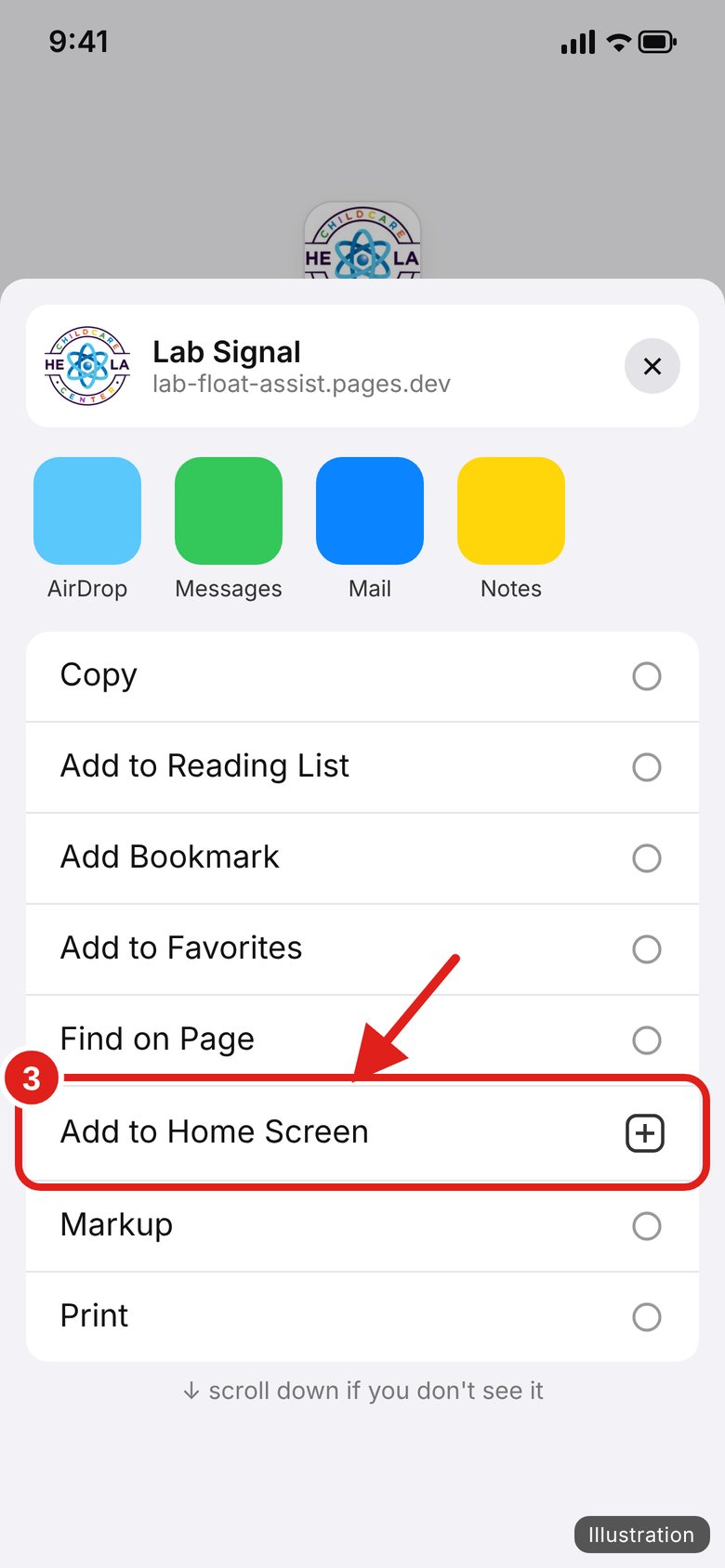
Illustration — your screen may look a little different.
Leave “Open as Web App” switched on (green).
Tap Add at the top right. (No switch? Just tap Add.)
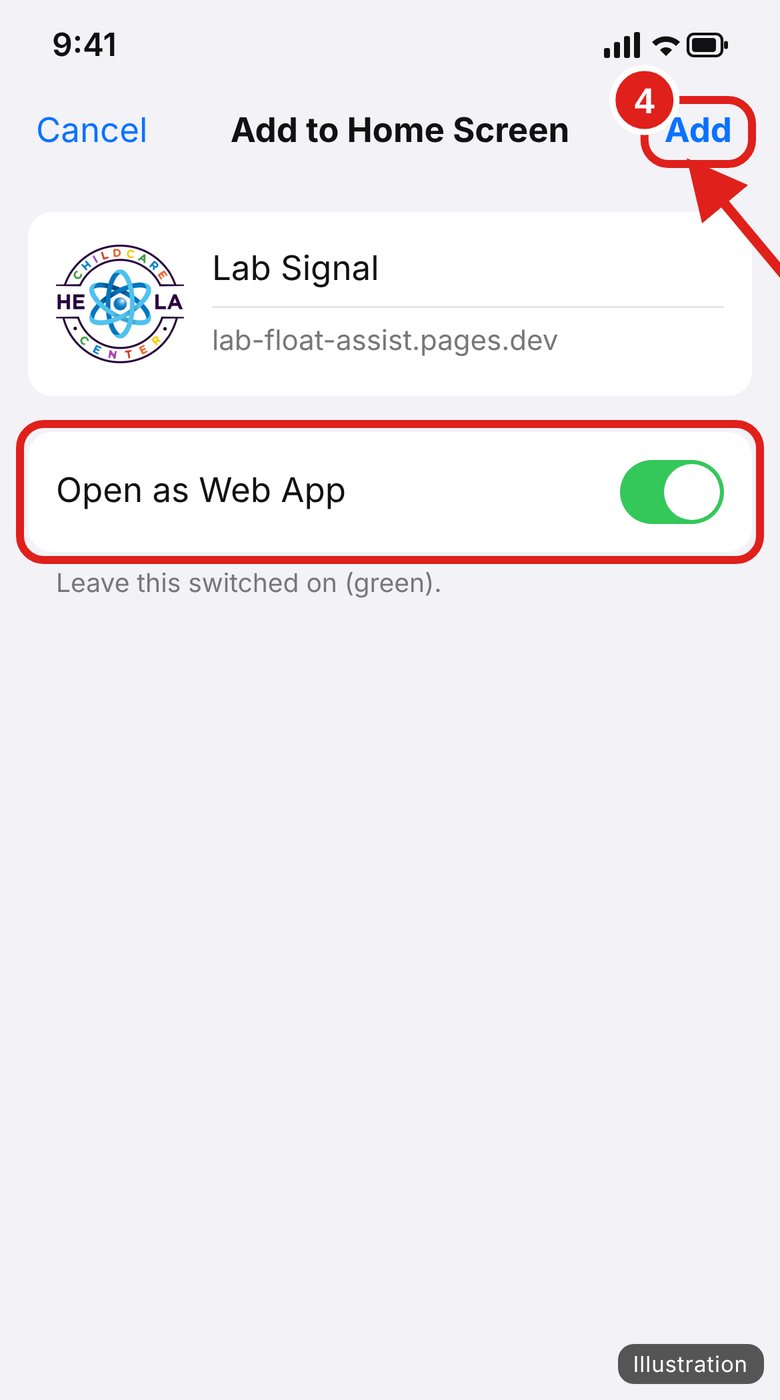
Illustration — your screen may look a little different.
Go to your Home Screen. Find the Lab Signal icon.
Don’t see it? Swipe through your Home Screen pages — it may be on the last one.
Tap it. From now on, always open Lab Signal from this icon.
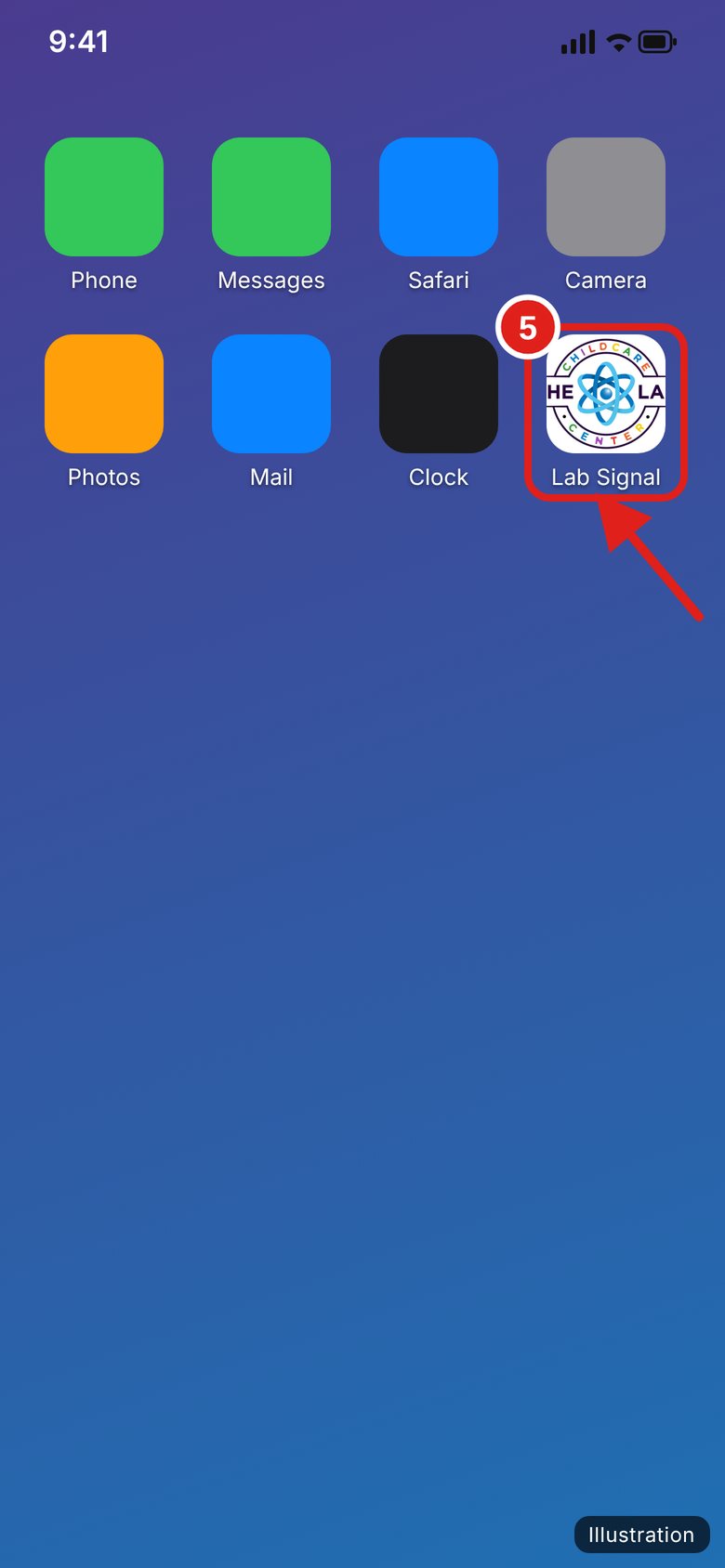
Illustration — your screen may look a little different.
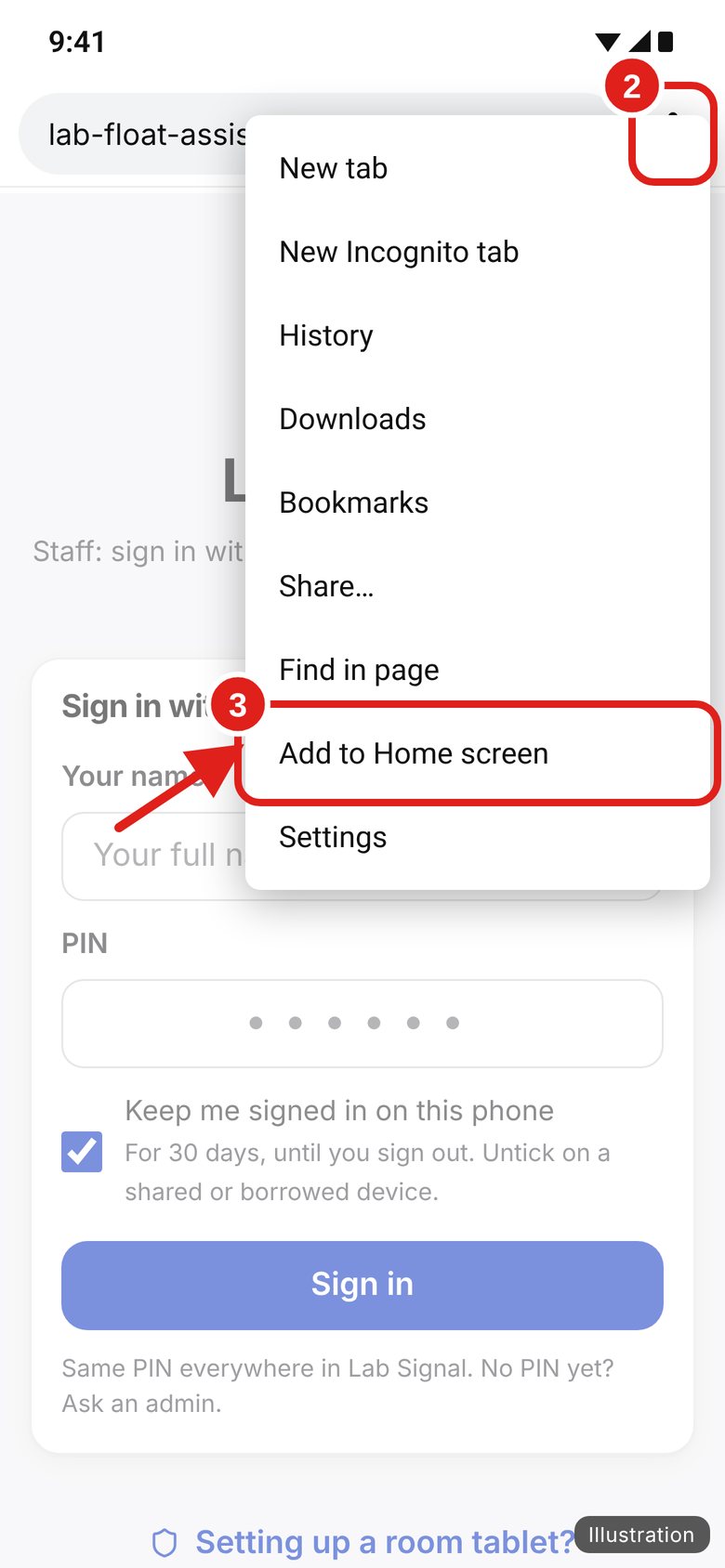
Illustration — Chrome on Android. Your menu may look a little different.
You do this the first time. On your own phone, you stay signed in for 30 days. After that, just type your PIN again.
Tap Your name.
Type your full name the way John or the admin set it up.
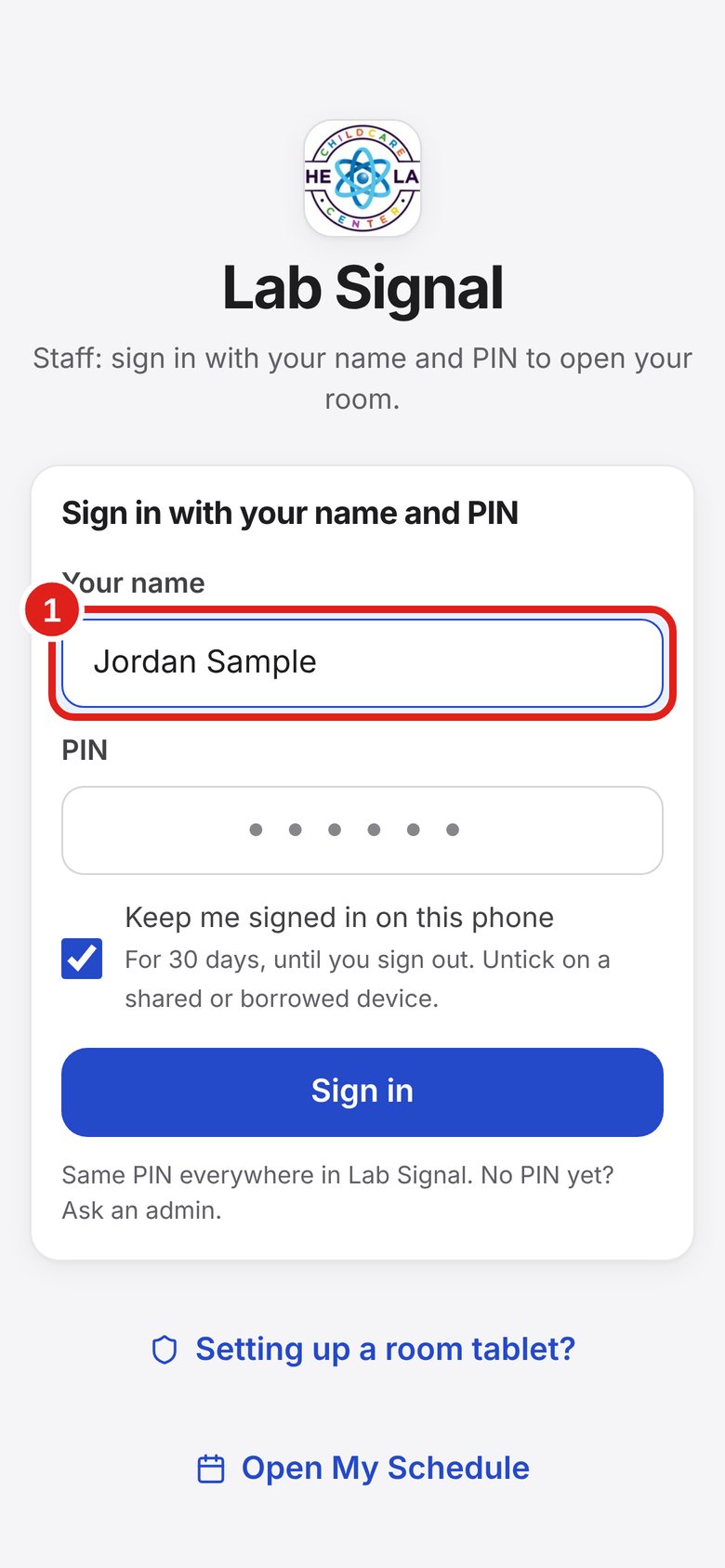
On your own phone, leave this box checked.
On a borrowed phone, uncheck it.
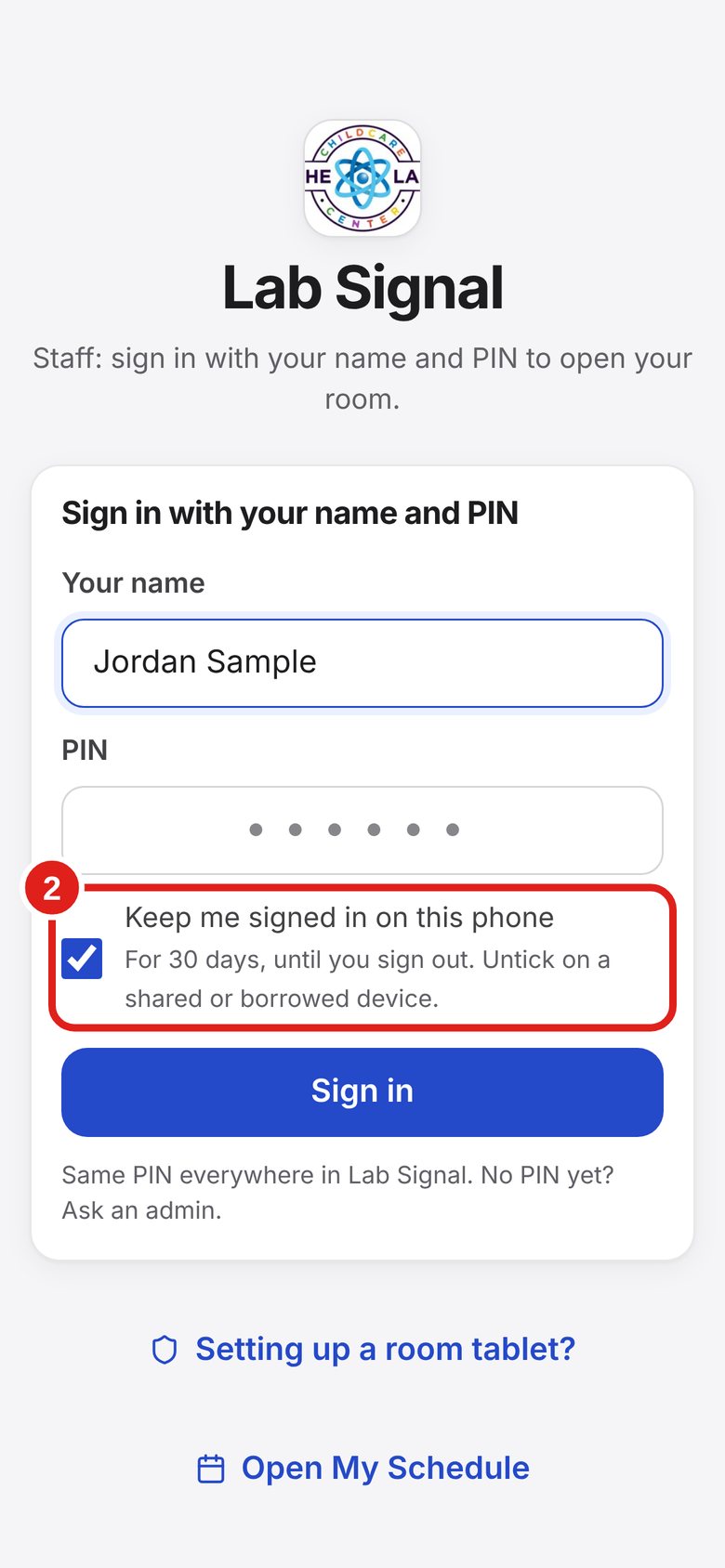
Tap PIN and type your 6 numbers.
You will see dots, not numbers.
After the 6th number, it signs you in by itself.
If it doesn’t, tap the blue Sign in button.
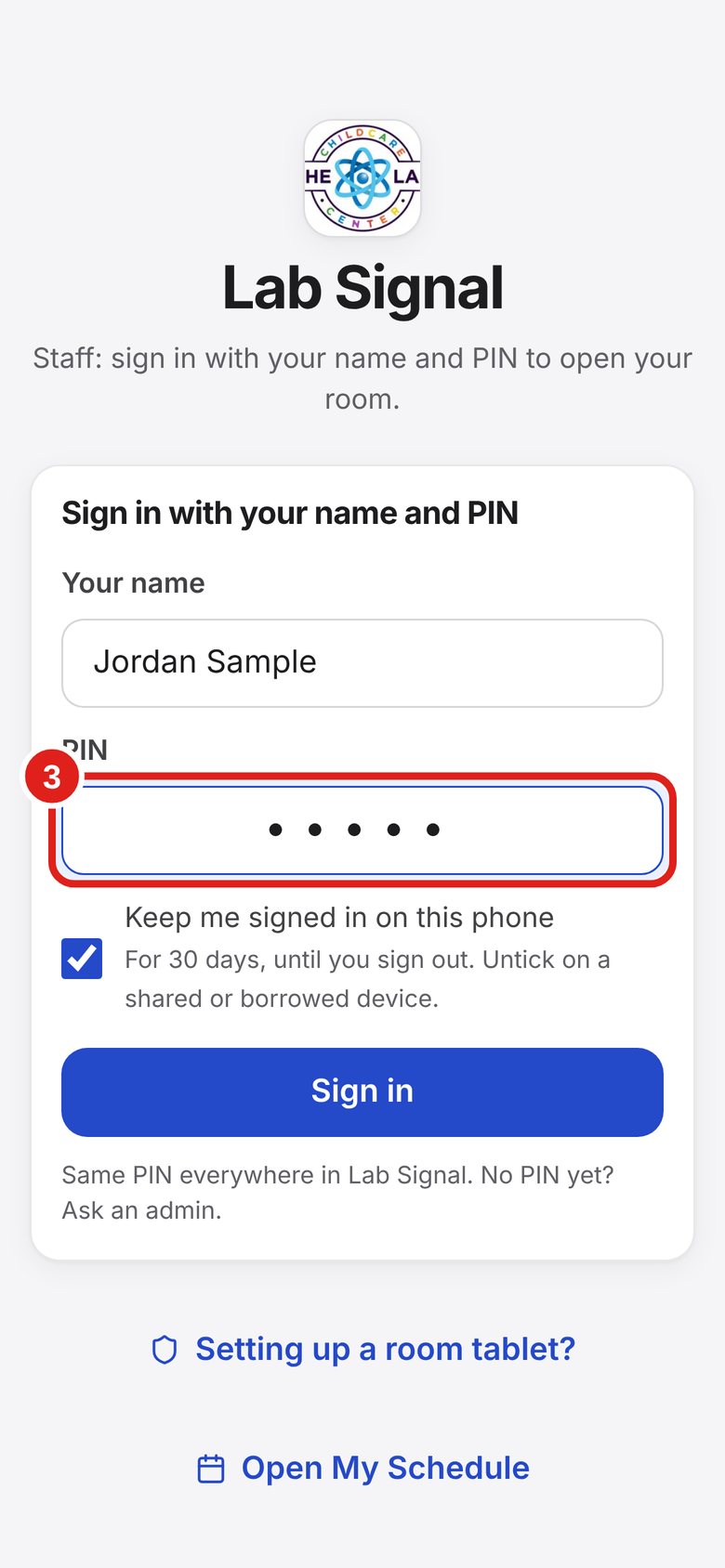
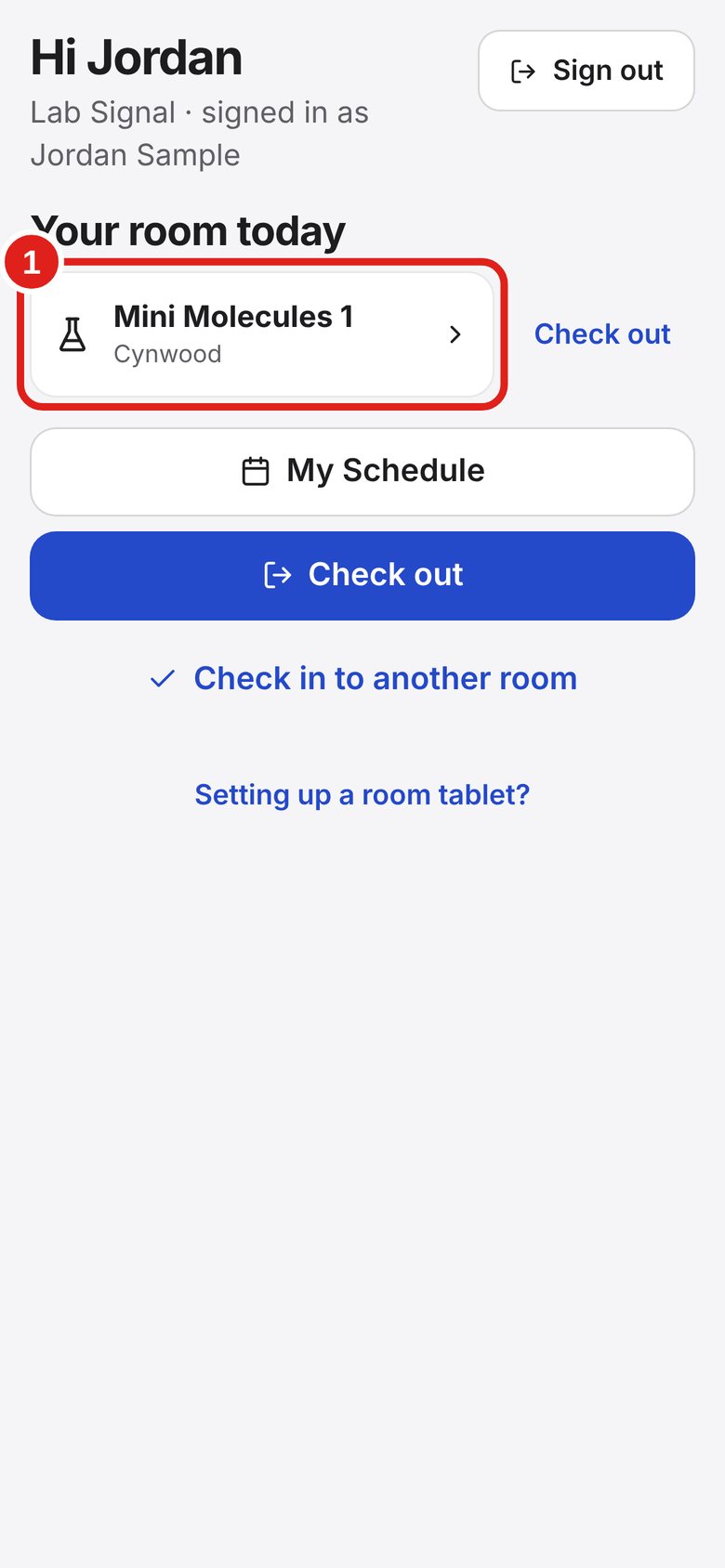
This is your home page. It says “Hi” and your name.
In this guide we call it My room. Other pages have a “← My room” button at the top left that brings you back here.
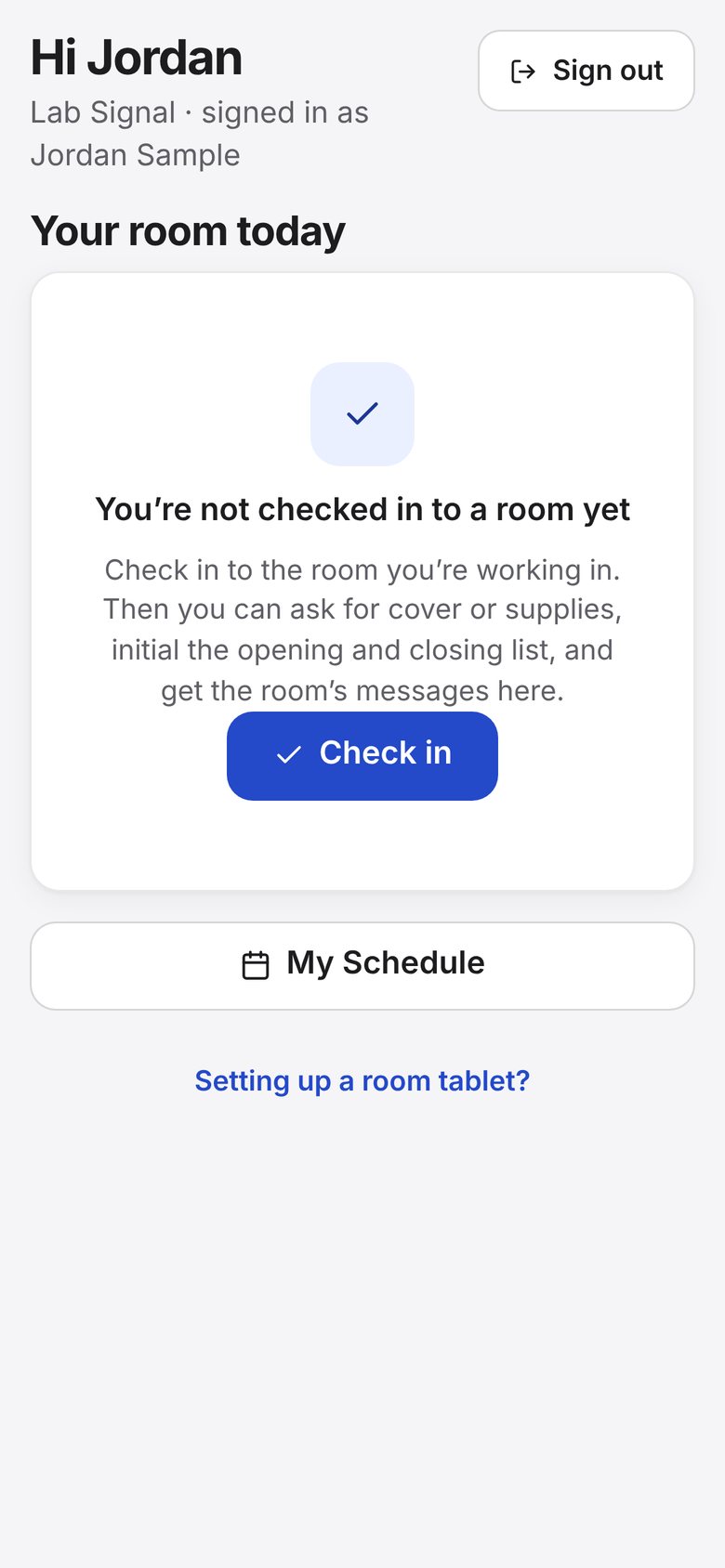
Do this every day, when you are at the center. Check-in uses your phone’s location, so it will not work from home. Lab Signal looks at your location only when you tap Check in. The office can see where you checked in from.
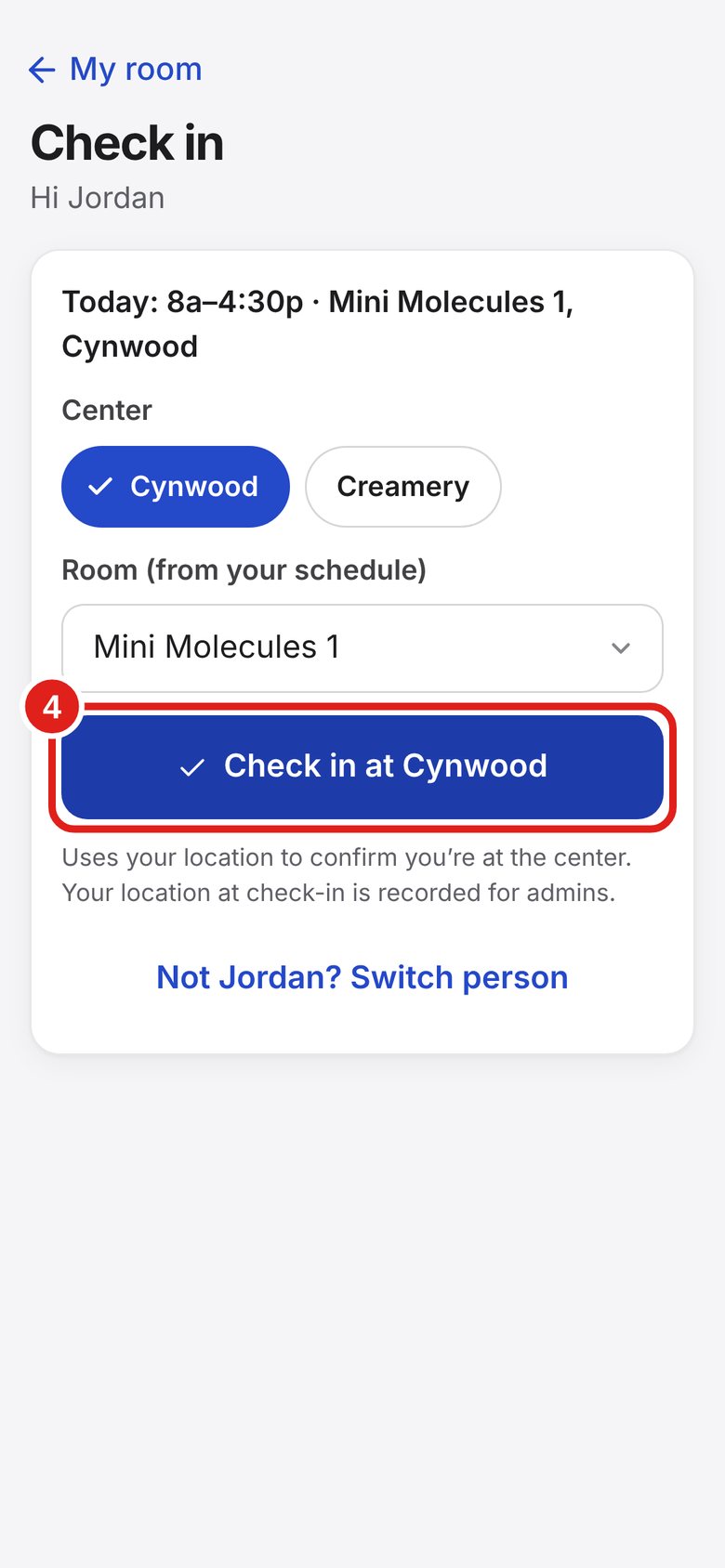
On My room, tap Check in.
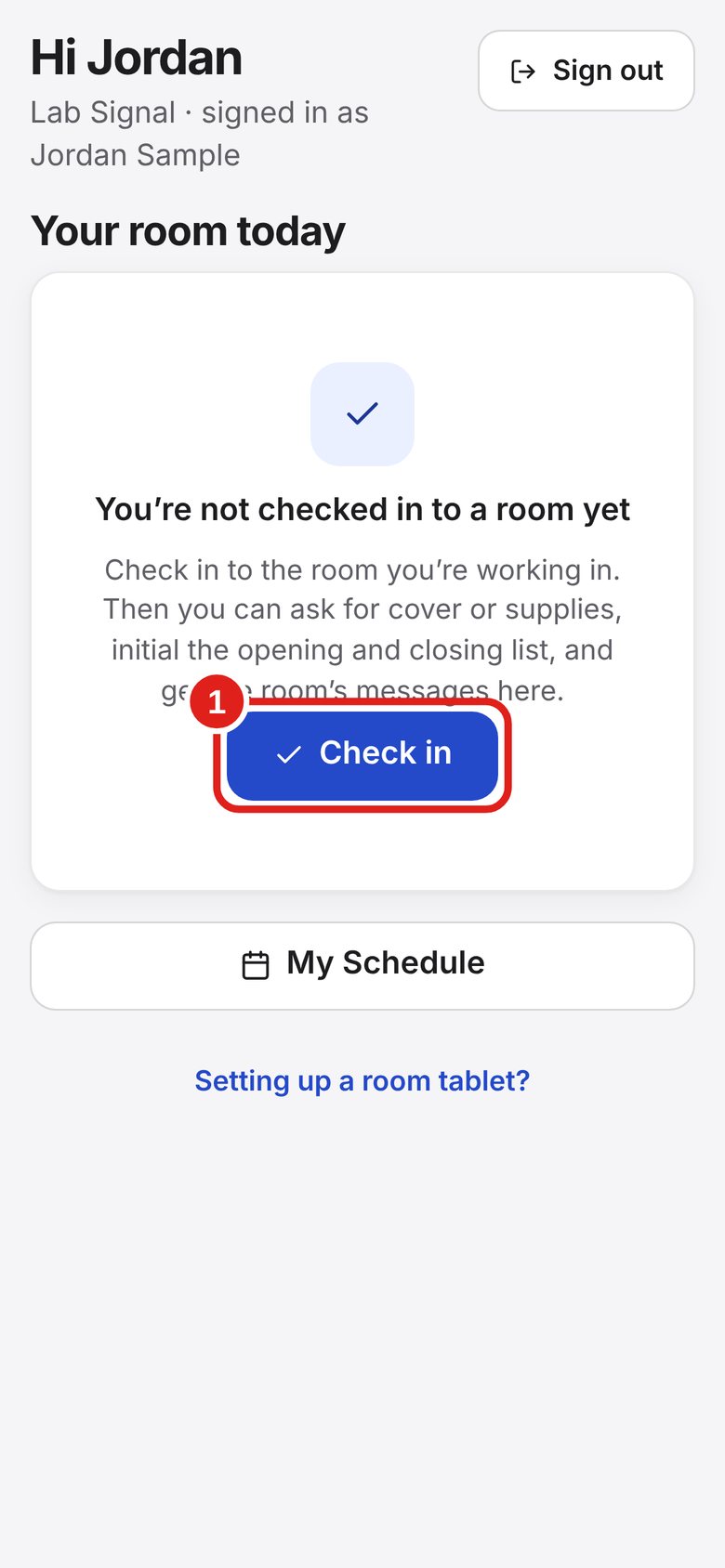
Tap Cynwood or Creamery.
If you have a shift today, your room may already be filled in.
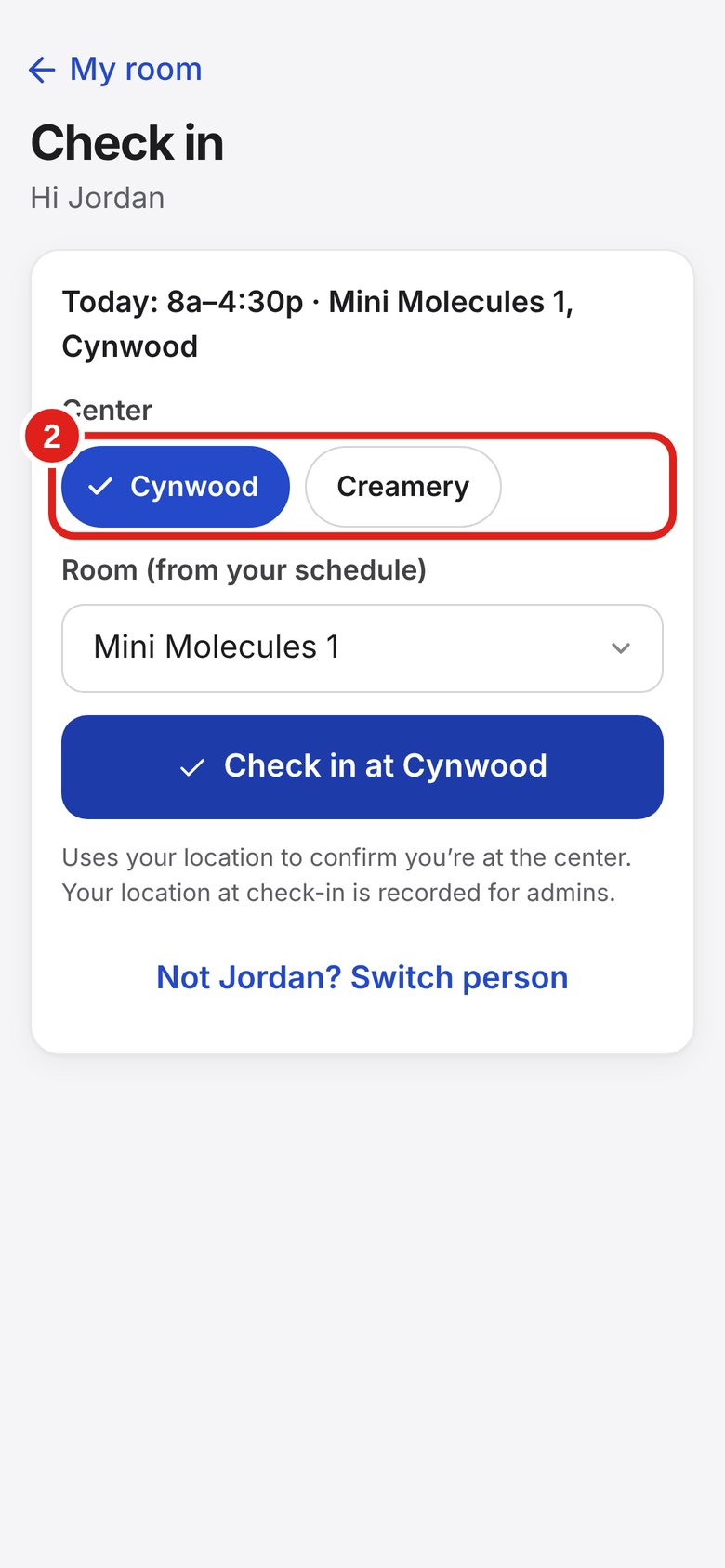
Tap Room. Pick the room you are working in.
Floater? Pick Floater.
Don’t pick Admin — that’s for the office.
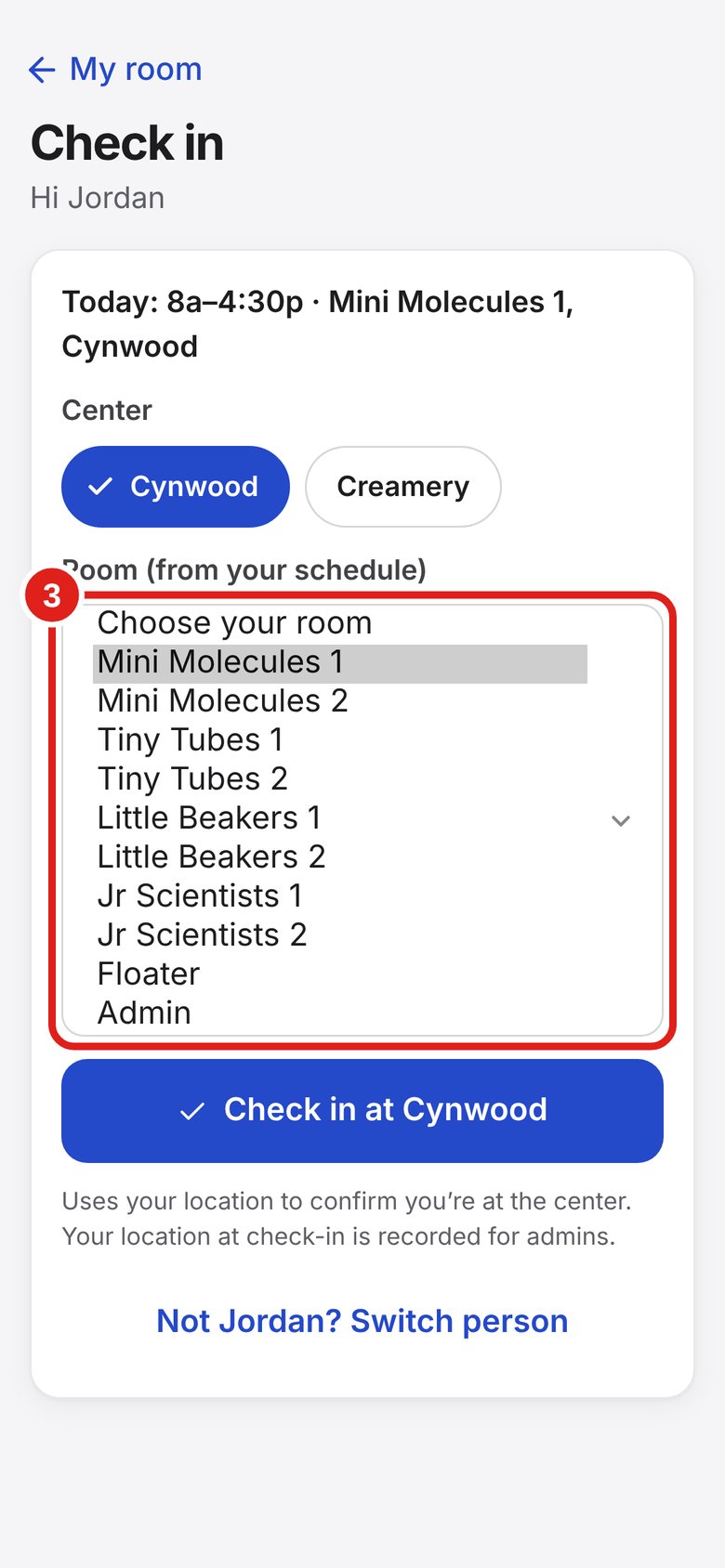
Tap “Check in at Cynwood” (or “Check in at Creamery”).
Wait — it may say “Finding your location…” for a few seconds.
Your phone asks to use your location. (An iPhone may ask again on other days.)
Tap Allow (or Allow While Using App).
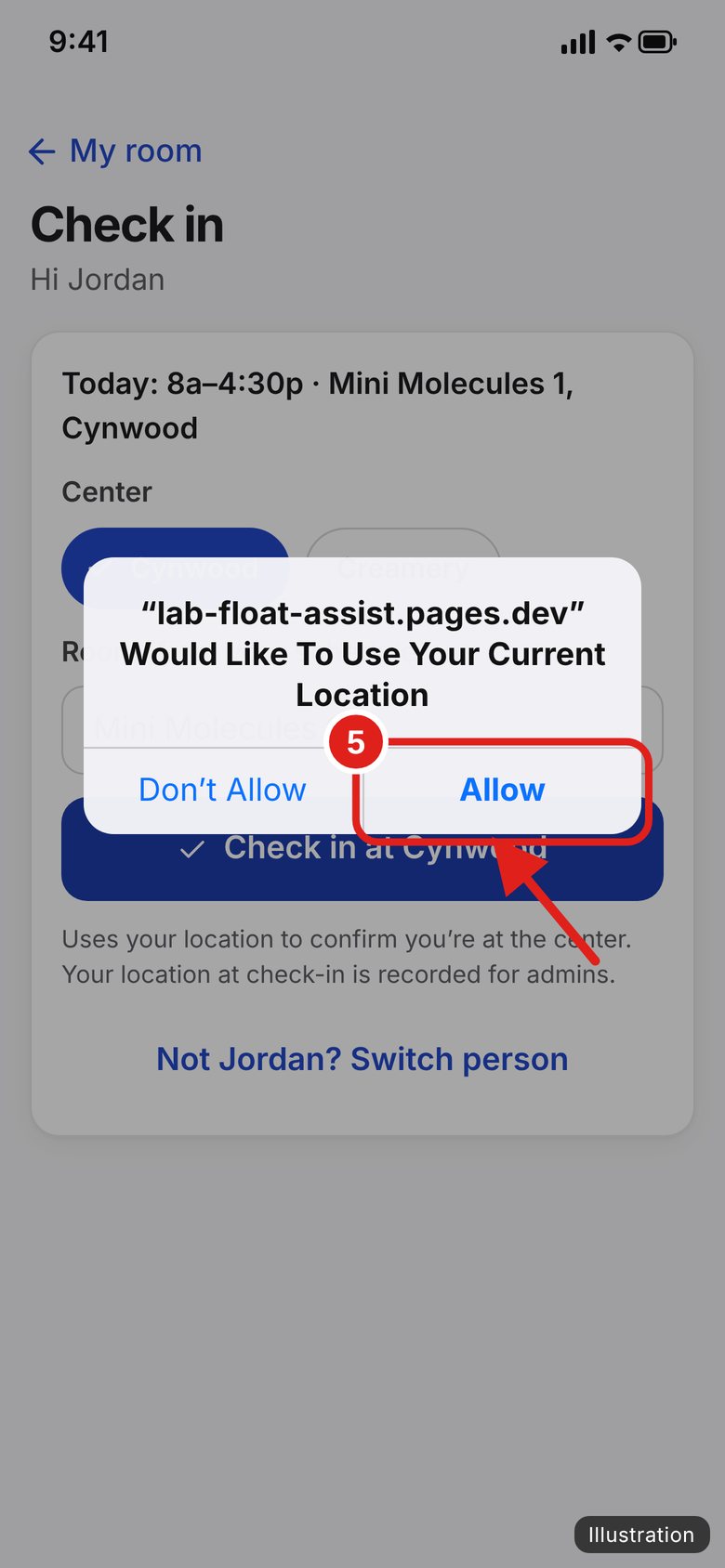
Illustration — your screen may look a little different.
You will see “Checked in” with your room and the time.
Remember: still clock in on Brightwheel.
If you see Turn on room alerts, tap it, then tap Allow.
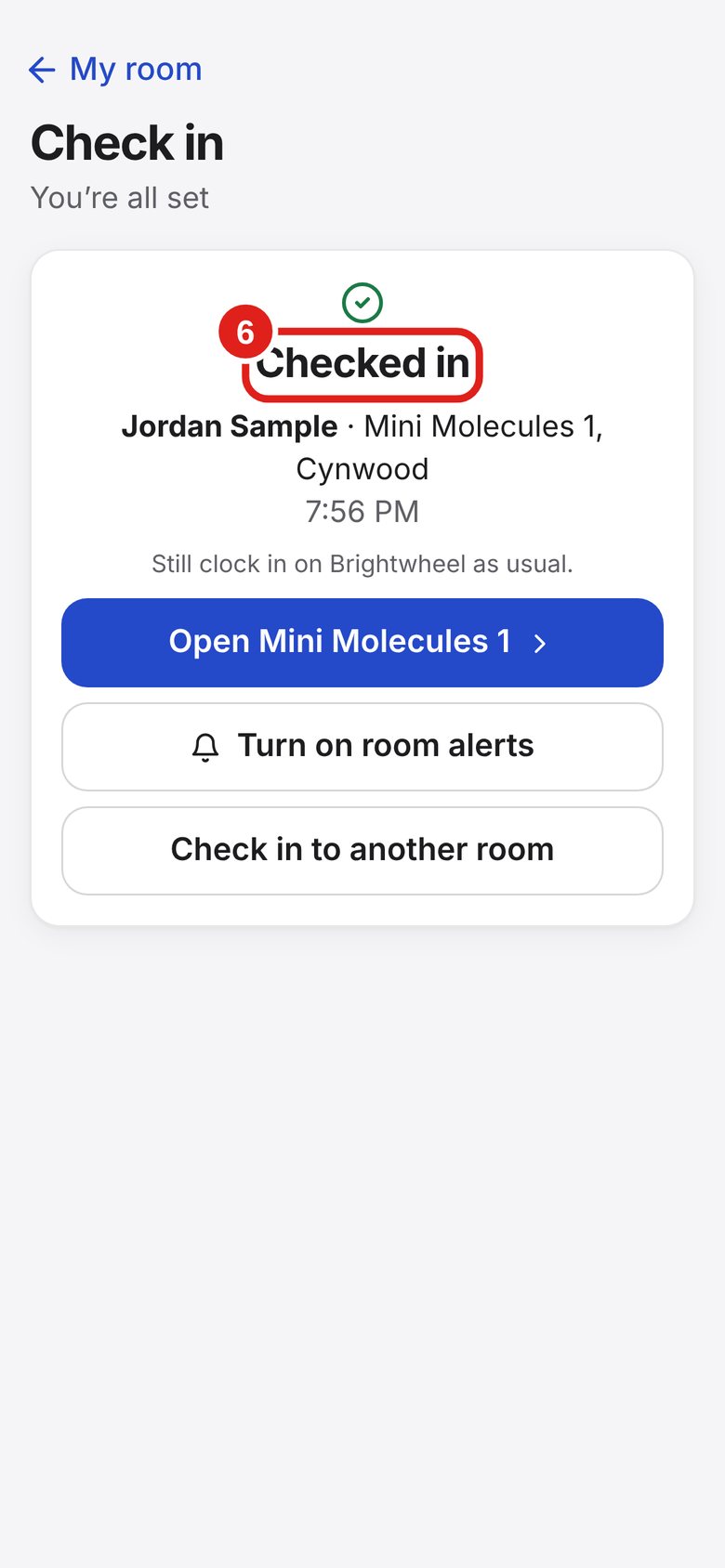
Tap the blue “Open [your room]” button to go to your room.
![Screenshot of Lab Signal: Open your room. Tap the blue “Open [your room]” button to go to your room.](img/l-checked-in-open.jpg)
Everything for your room is in one place.
My room shows the room you checked in to.
Tap it to open it.
A — Buttons to ask for help.
B — Messages from the office (top right).
Scroll down for the opening and closing list.
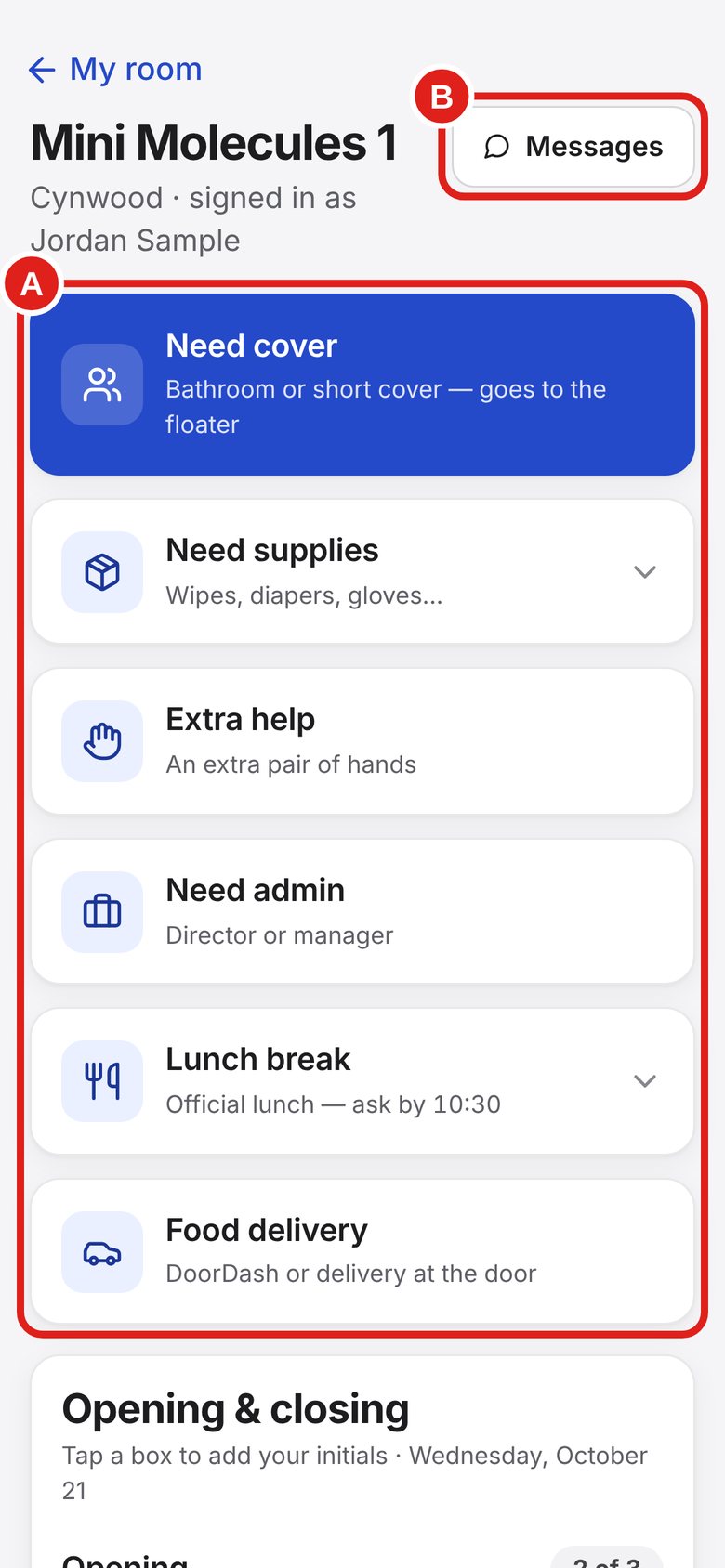
One tap sends your request. You can see when someone is coming.
For a bathroom break or short cover.
It shows up right away on the Floater desk.
No one coming? Ask in person or tap Extra help.
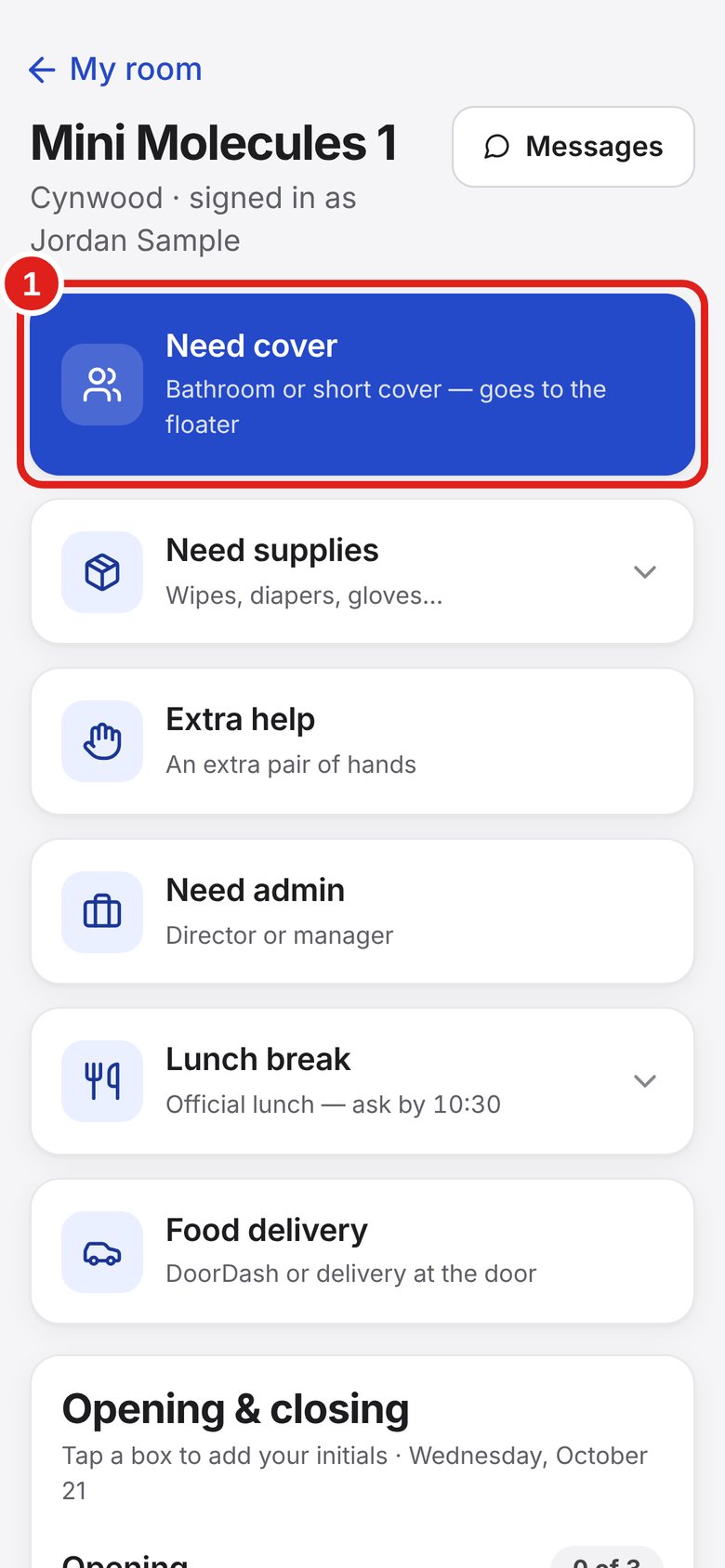
A box at the top shows your request.
The timer shows how long it has been waiting.
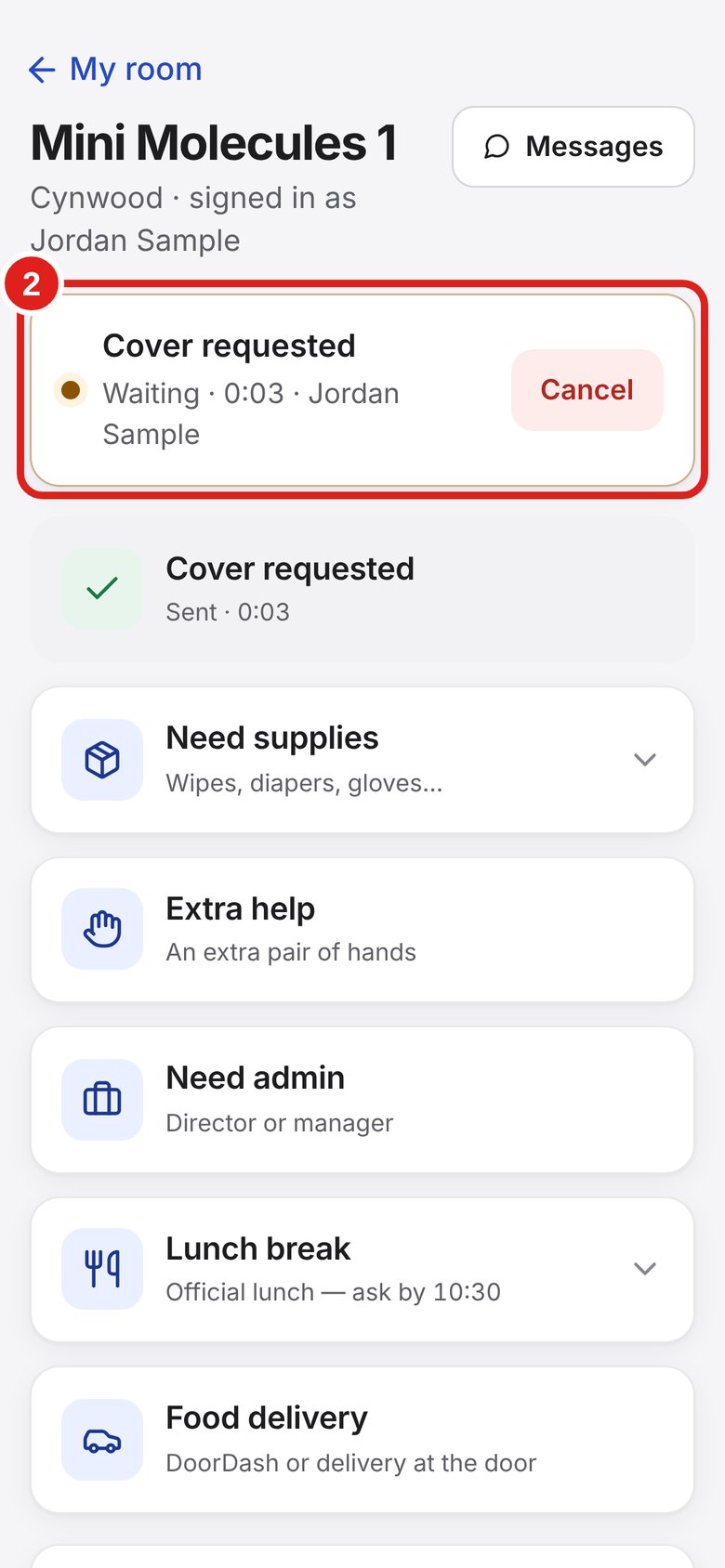
When someone takes it, it says “… is on the way”.
You may also see a short reply, like “Seen — on my way”.
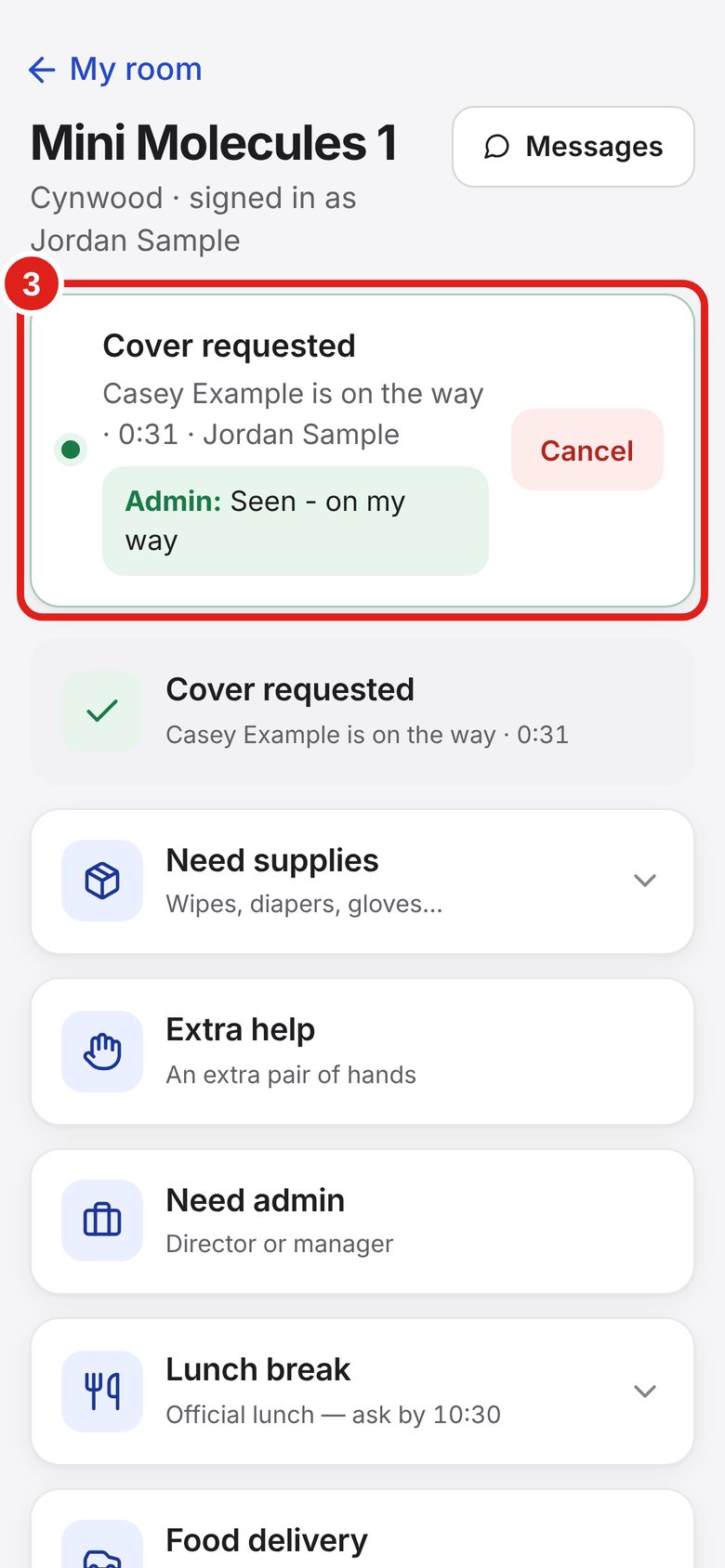
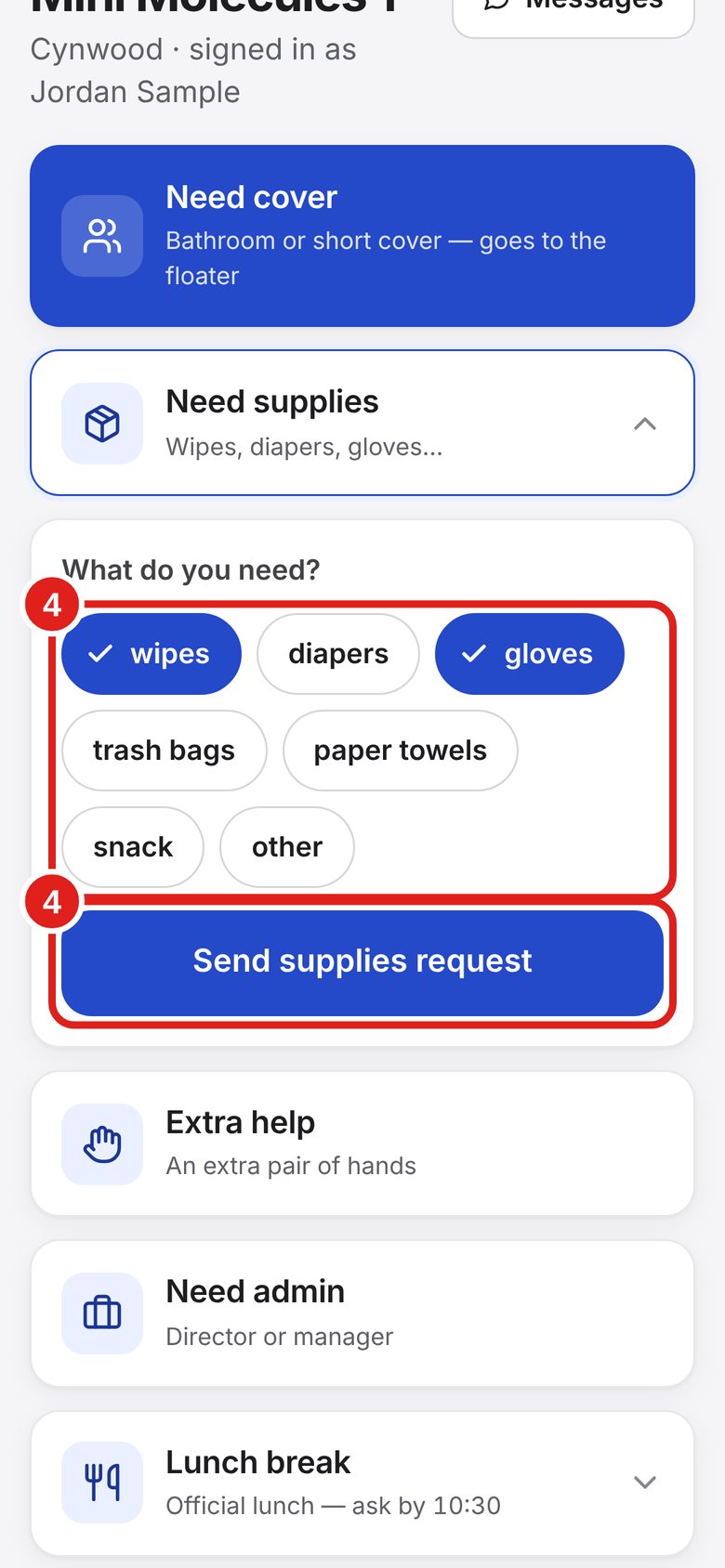
Tap Need supplies.
Tap what you need (wipes, gloves …). Pick “other” to type something.
Tap Send supplies request.
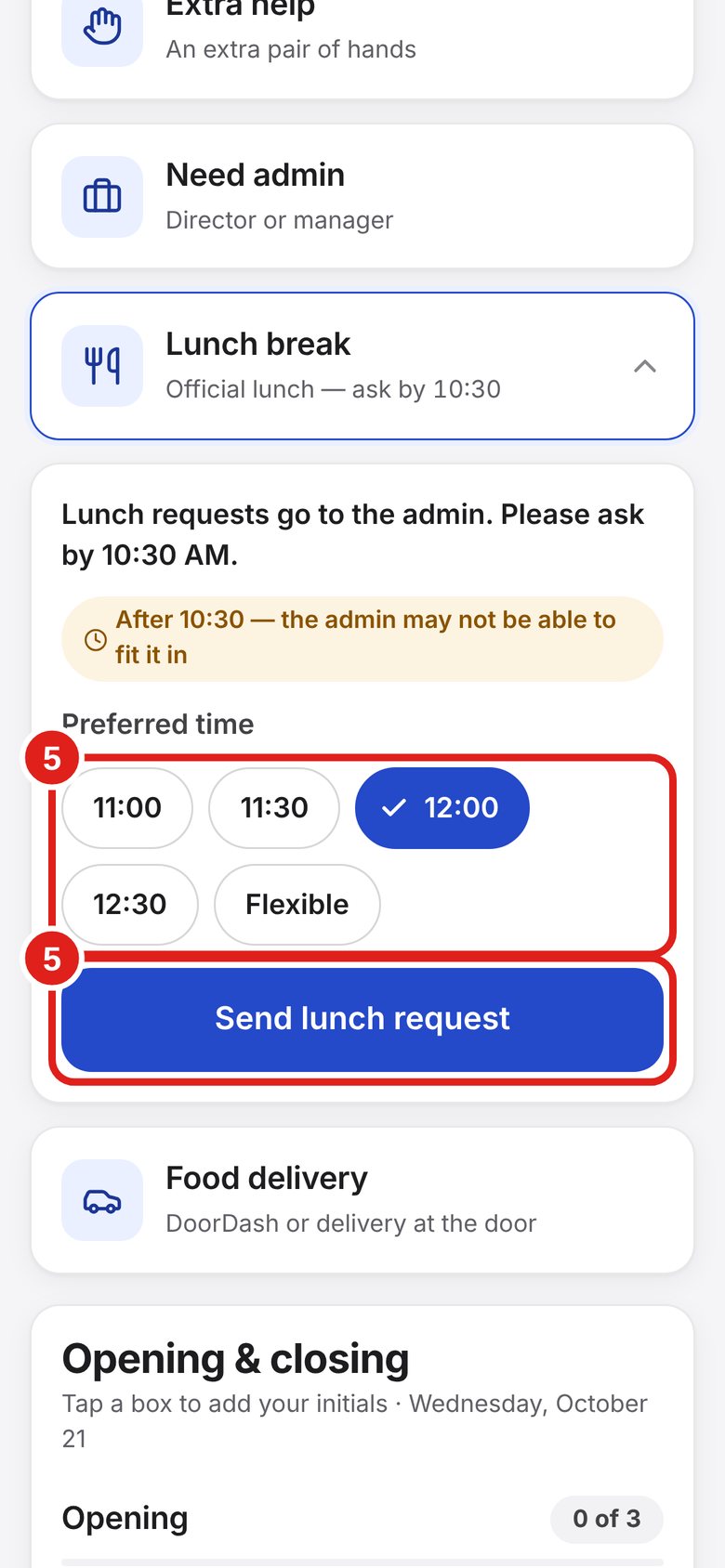
Tap Lunch break. Pick a time (or Flexible).
Tap Send lunch request. It goes to the office.
Please ask by 10:30 AM. After that you can still send it, but the office may not fit it in.
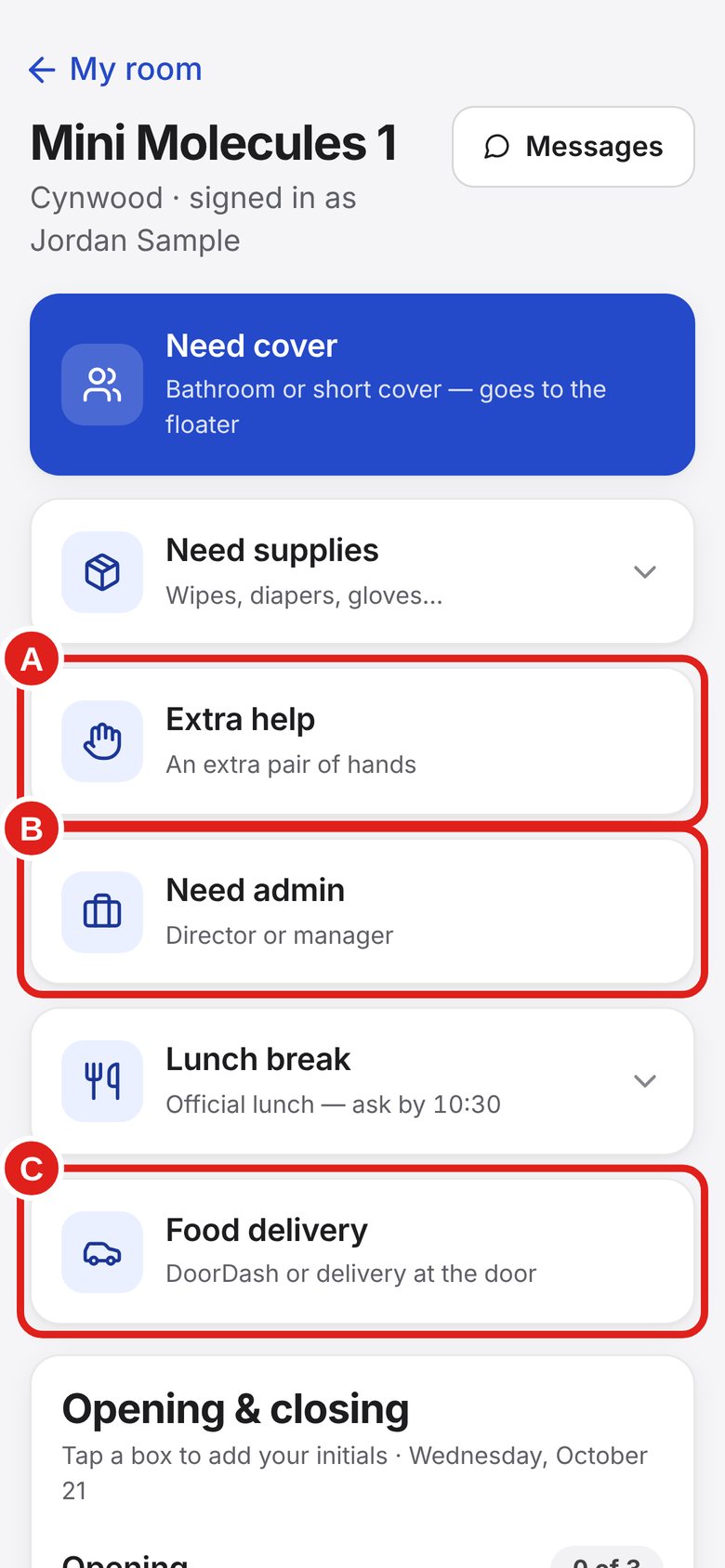
A — Extra help: you need an extra pair of hands.
B — Need admin: you need the director or a manager.
C — Food delivery: a delivery is at the door.
One tap sends each one.
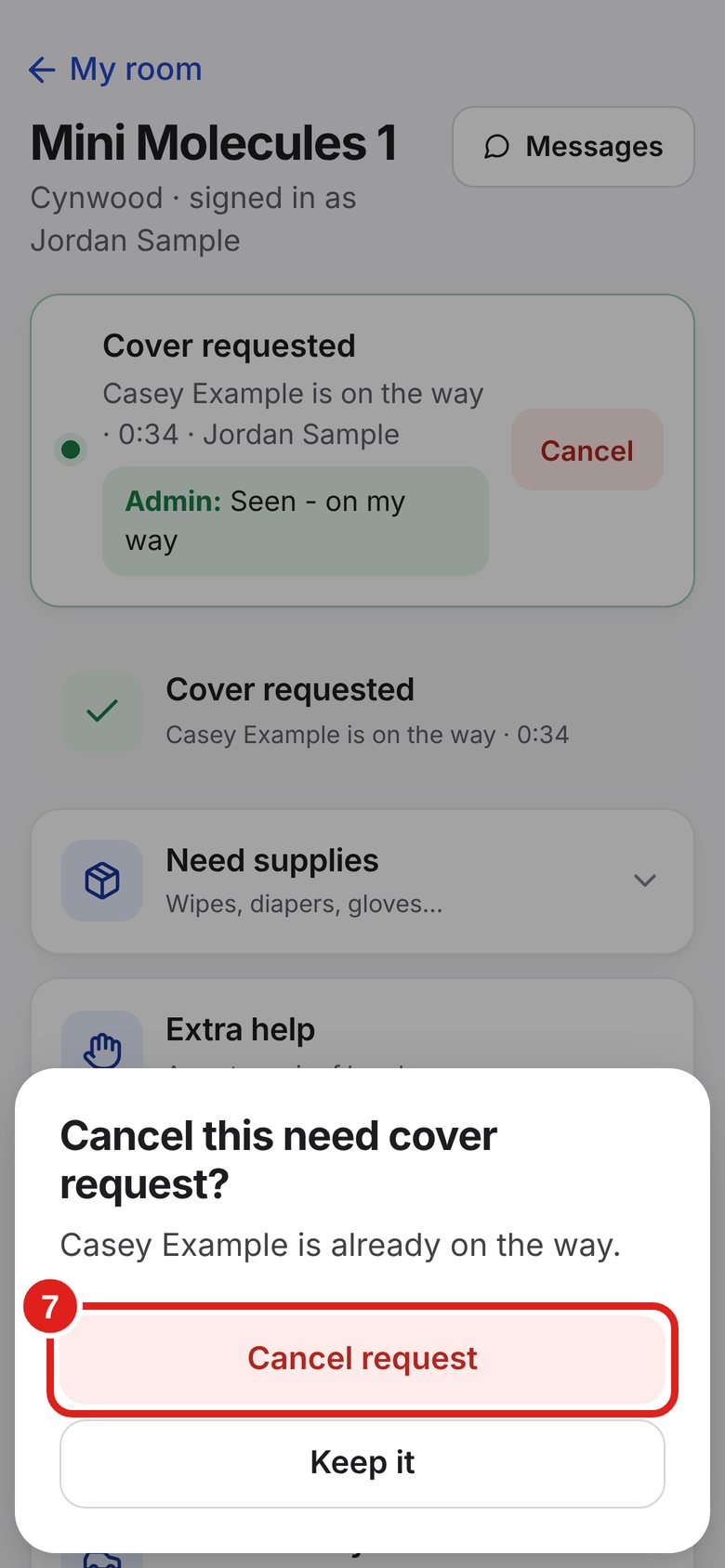
In the box at the top, tap Cancel.
Then tap Cancel request. (Tap Keep it to leave it.)
This is the paper checklist, on your phone. Your initials go in for you.
On your room screen, scroll down to “Opening & closing”.
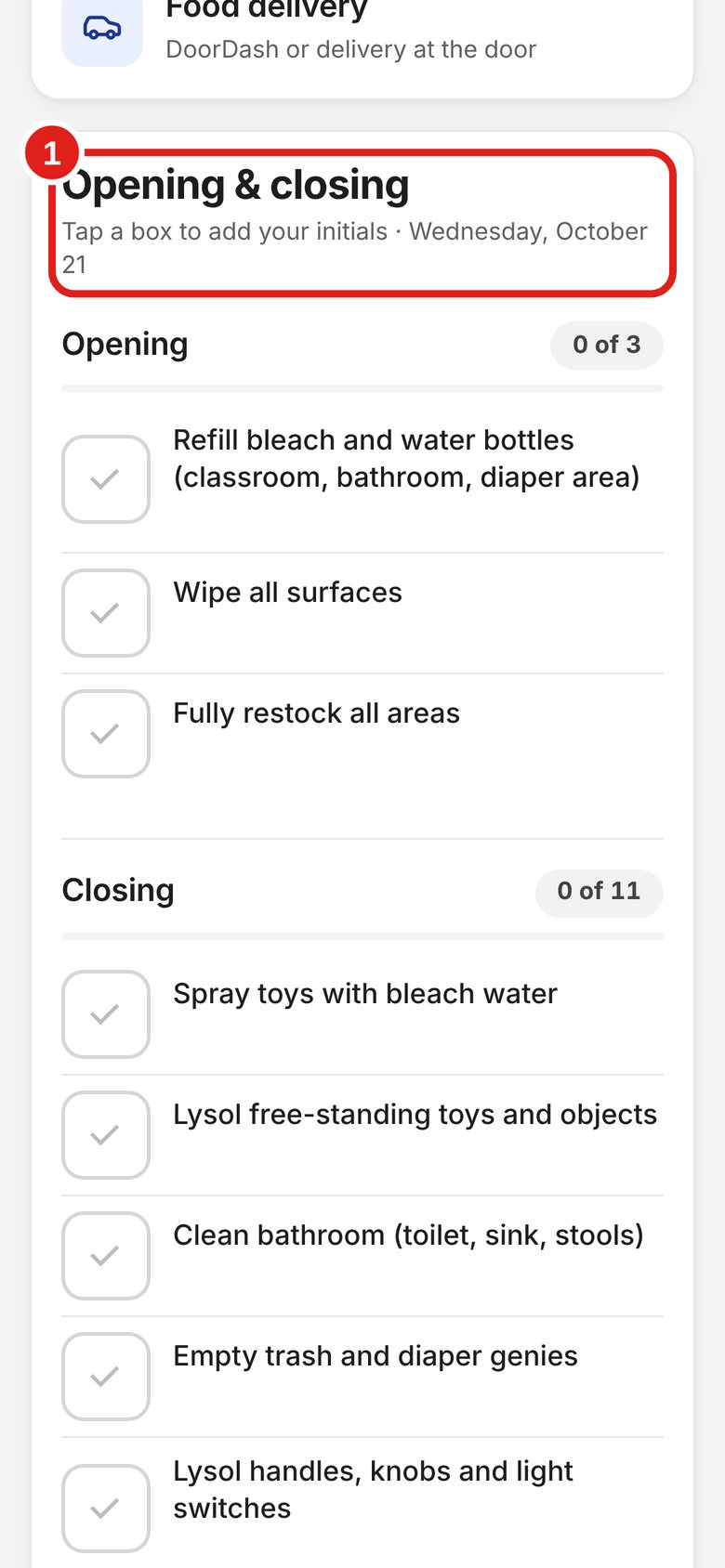
Tap the box next to the job.
Your initials and the time appear.
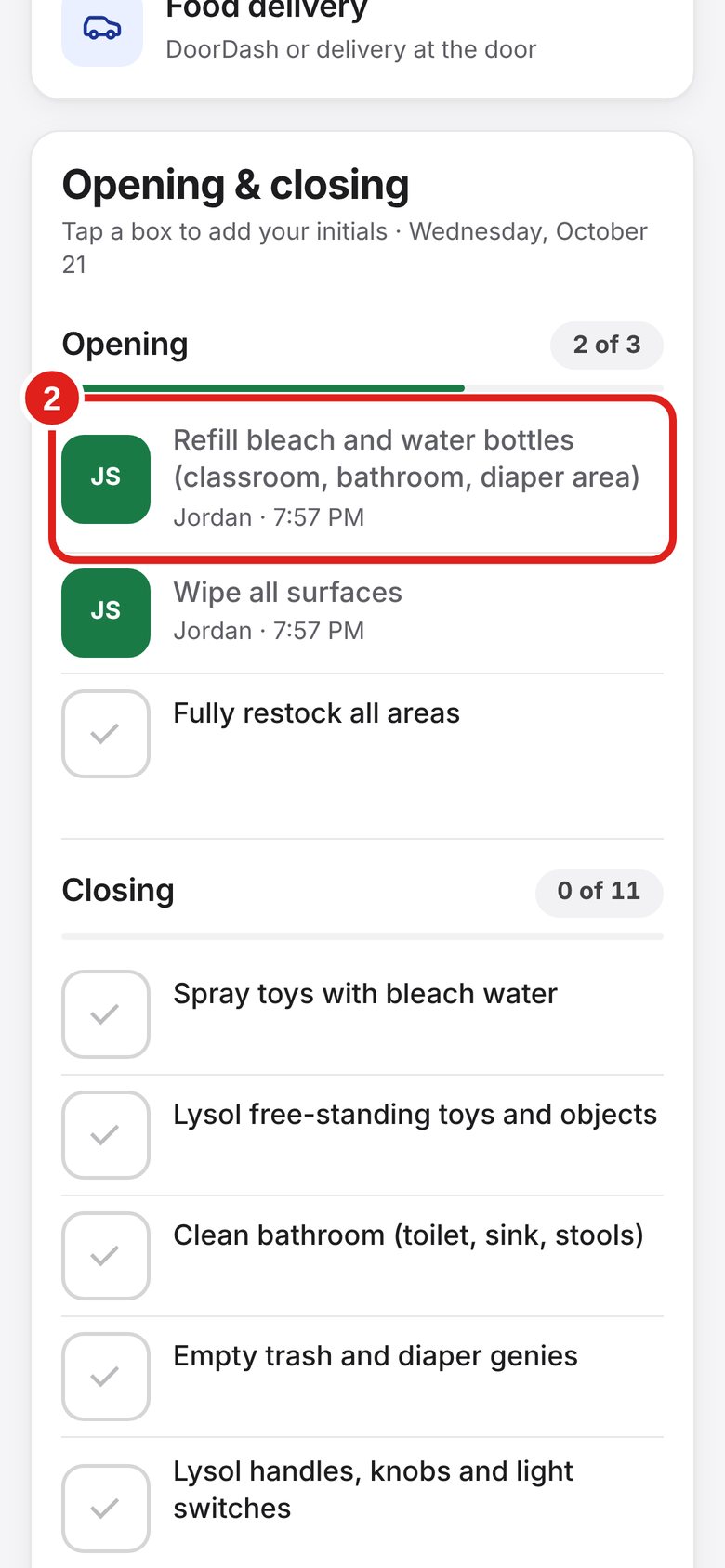
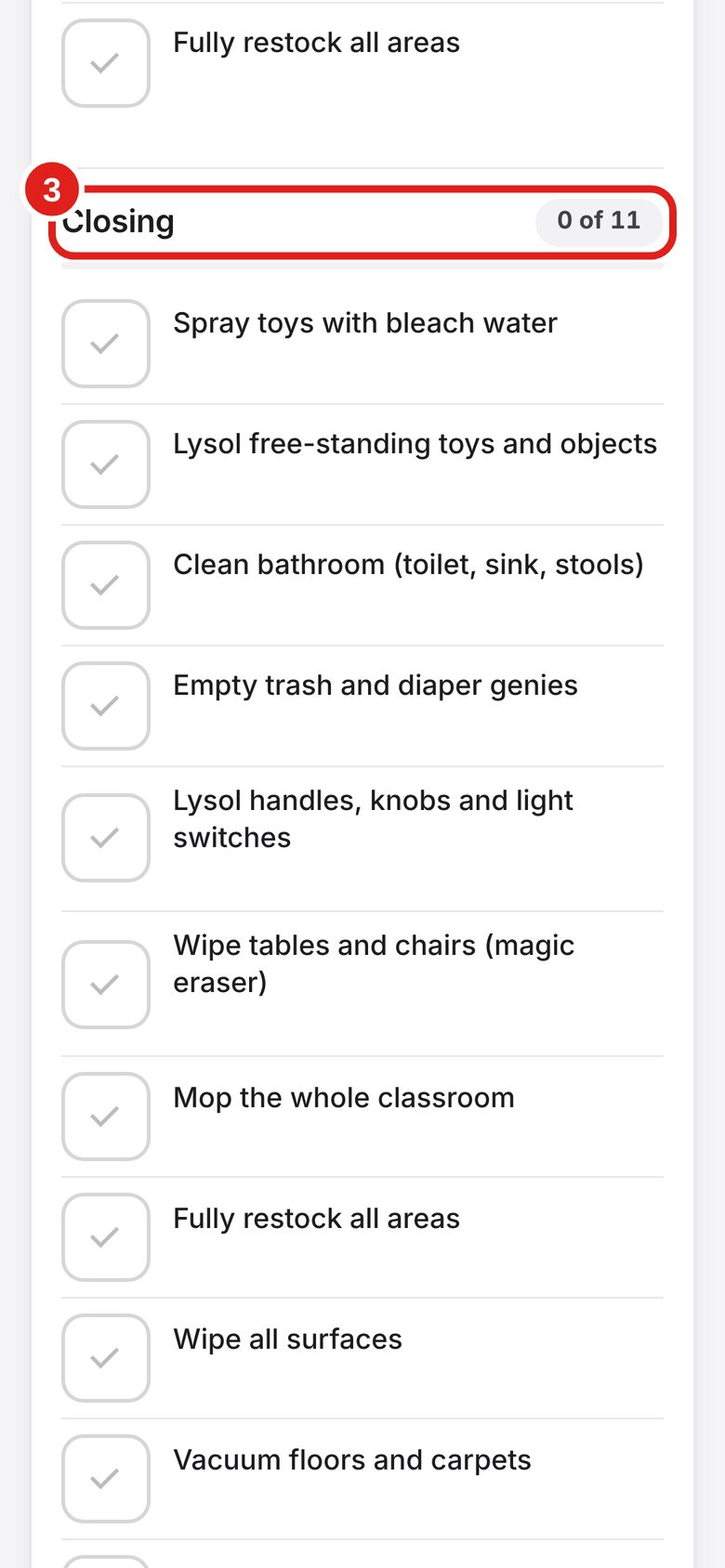
The count shows how many jobs are done, like “0 of 11”.
The Closing list is below. Use it at the end of the day.
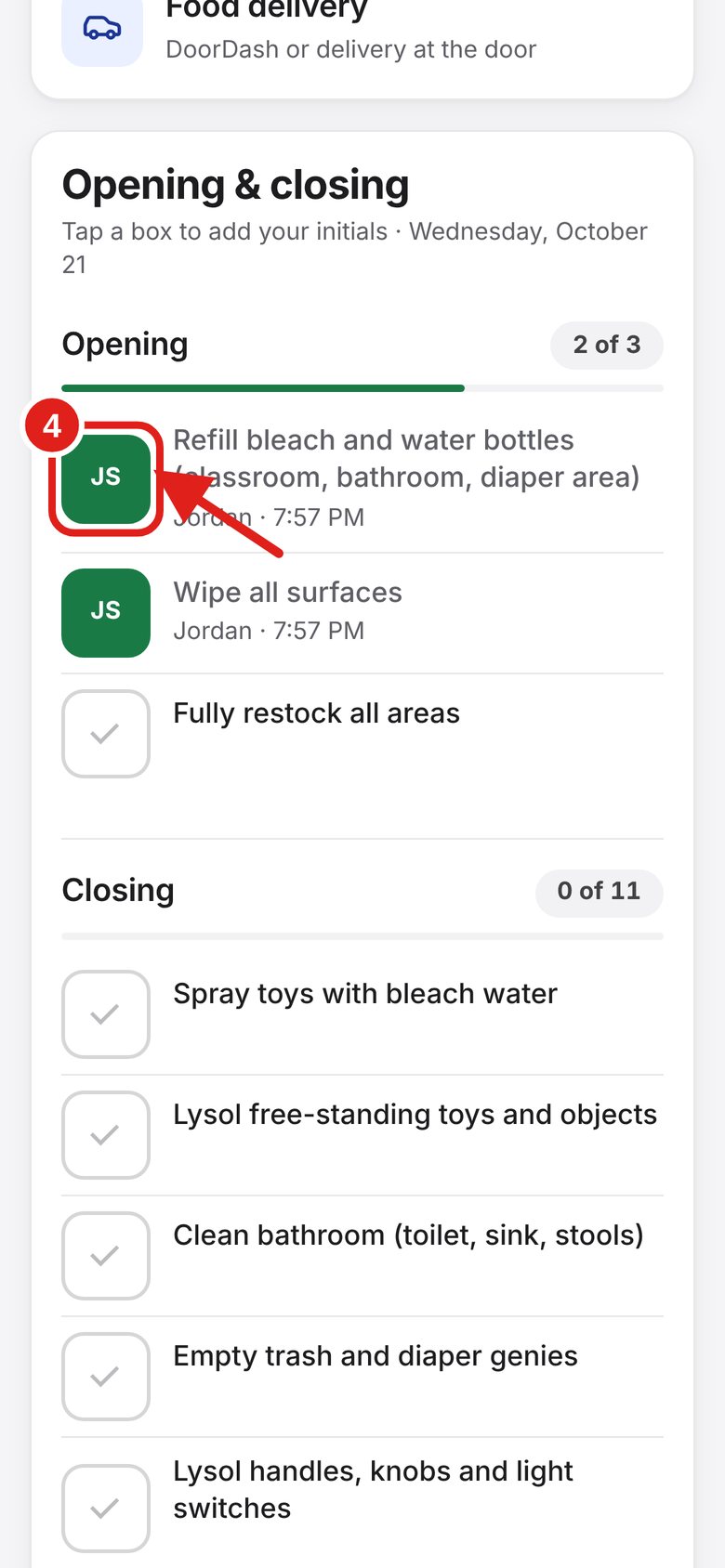
Tap your own box again to clear it.
Only you (or an admin) can clear your initials.
Jobs marked “Fridays only” say N/A on other days.
The office can send a message to your room. You get it while you are checked in to that room.
A red number on Messages means something new.
Tap Messages.
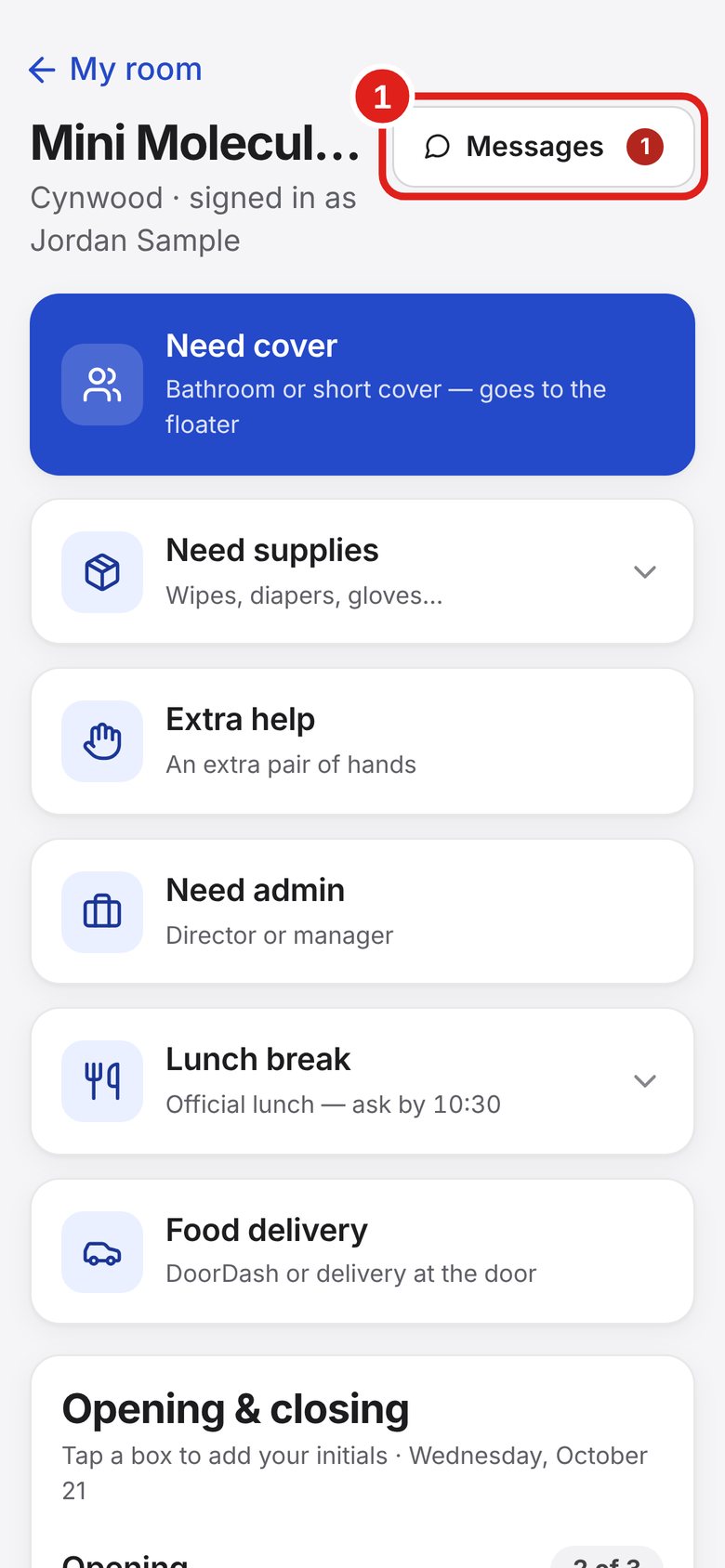
Messages from the office are shown here, newest at the bottom.
Each one shows who sent it (for example, John).
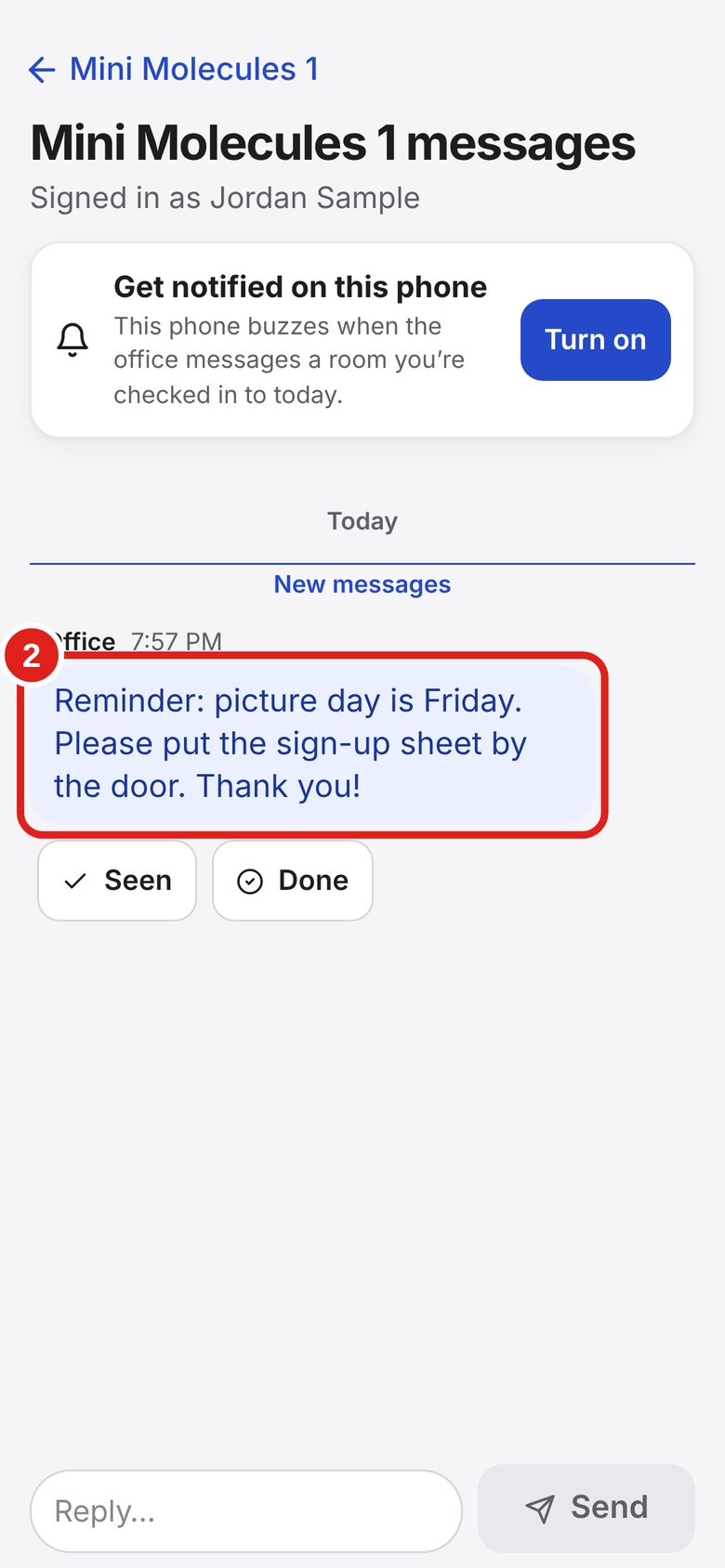
Tap Seen when you have read it.
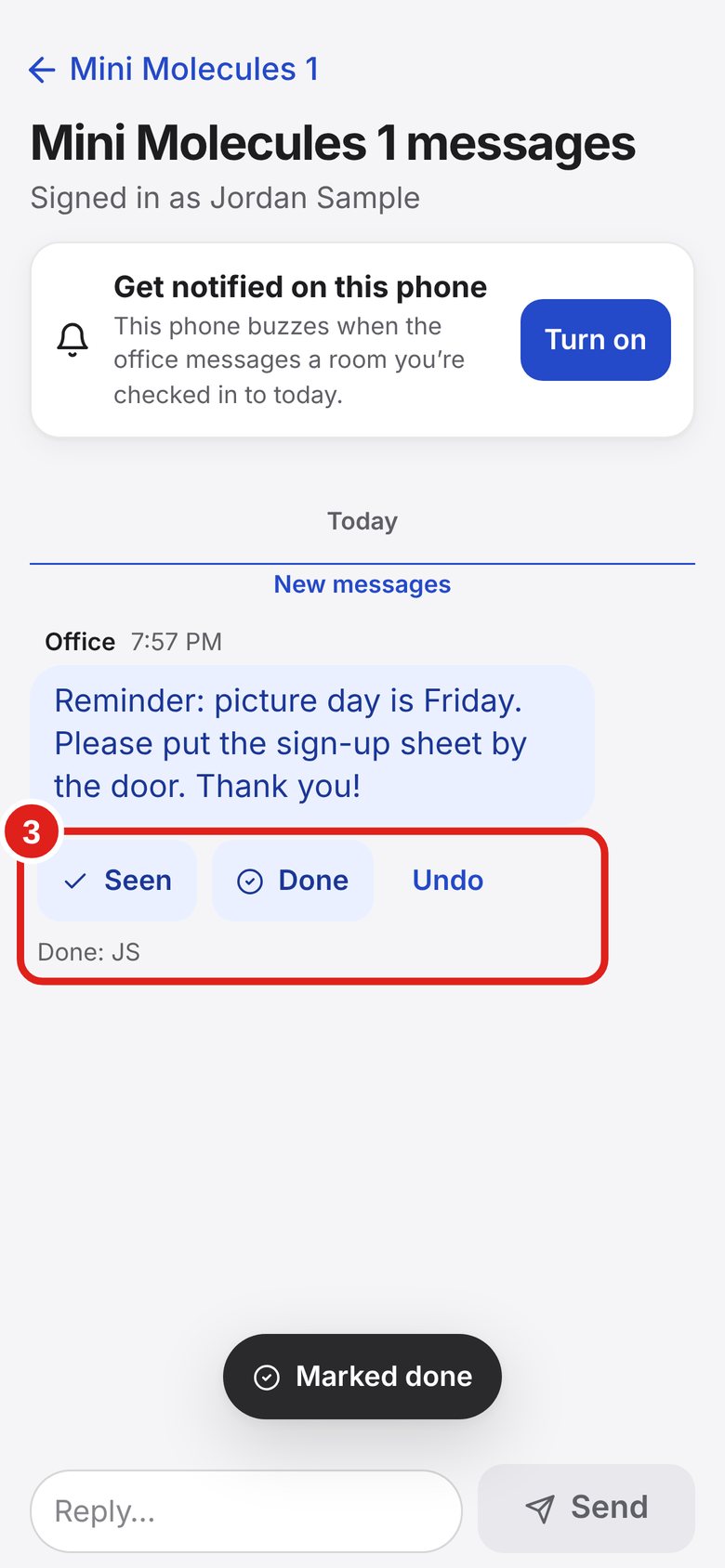
Tap Done when you have done what it asks.
Your initials show. Tapped by mistake? Tap Undo (it stays for about 10 minutes).
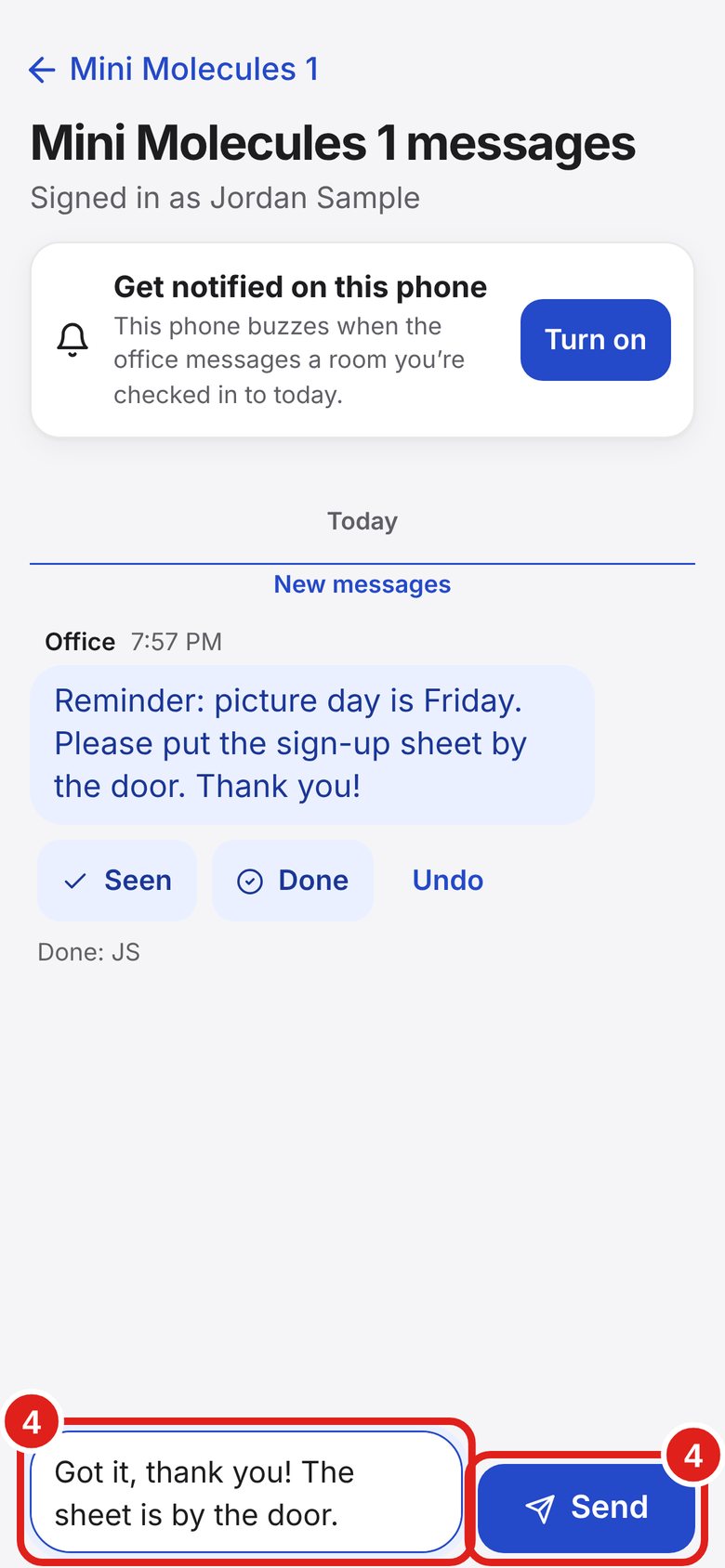
Tap the Reply box and type.
Tap Send. The office and everyone checked in to this room can see your reply, so keep it about work.
Tap Turn on, then tap Allow.
iPhone: this only works when you open Lab Signal from the Home Screen icon.
Alerts also tell you about schedule changes and answers to time-off requests.
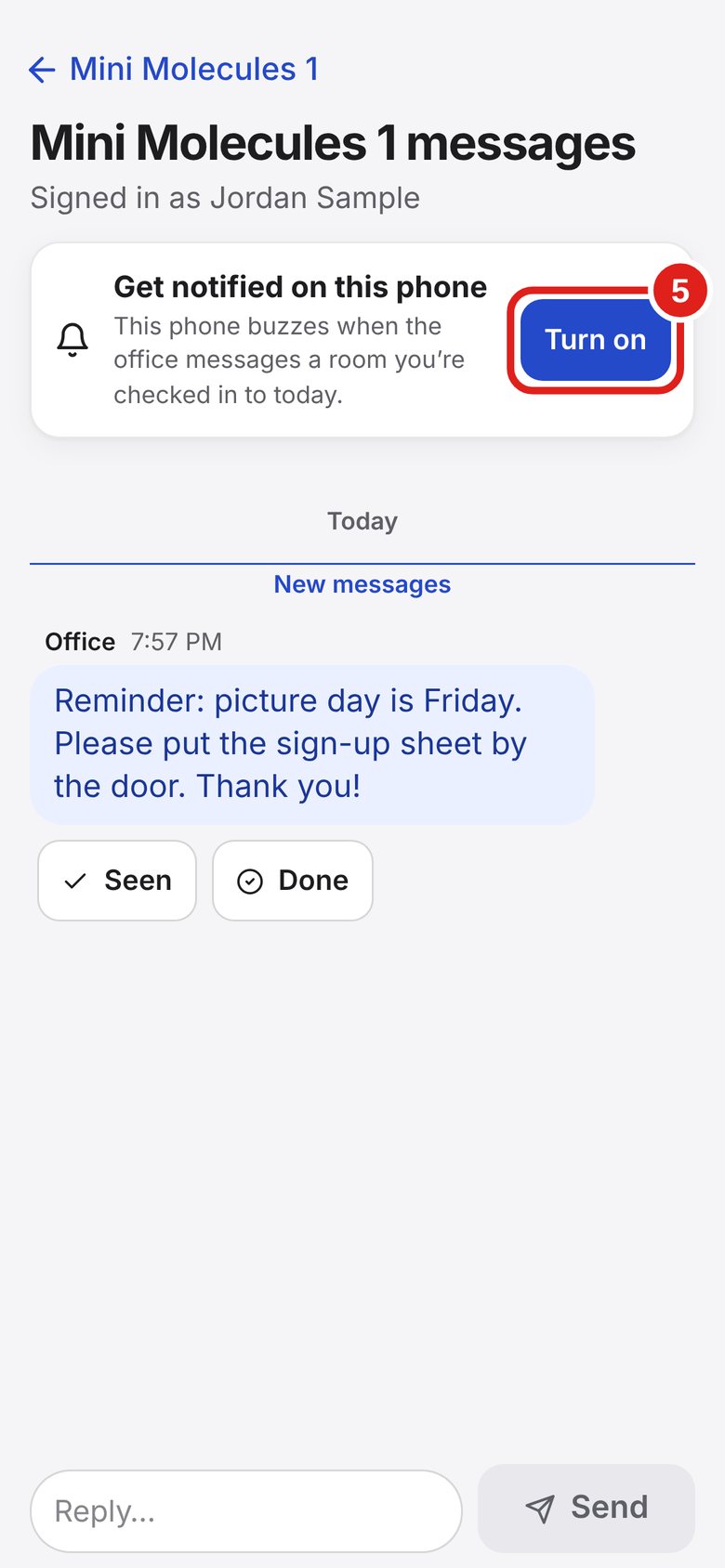
The floater sees cover, supply and extra-help requests from every room at the center. Turn on alerts once and your phone buzzes for every new request at the center while you are checked in as Floater — you don’t have to keep the screen open.
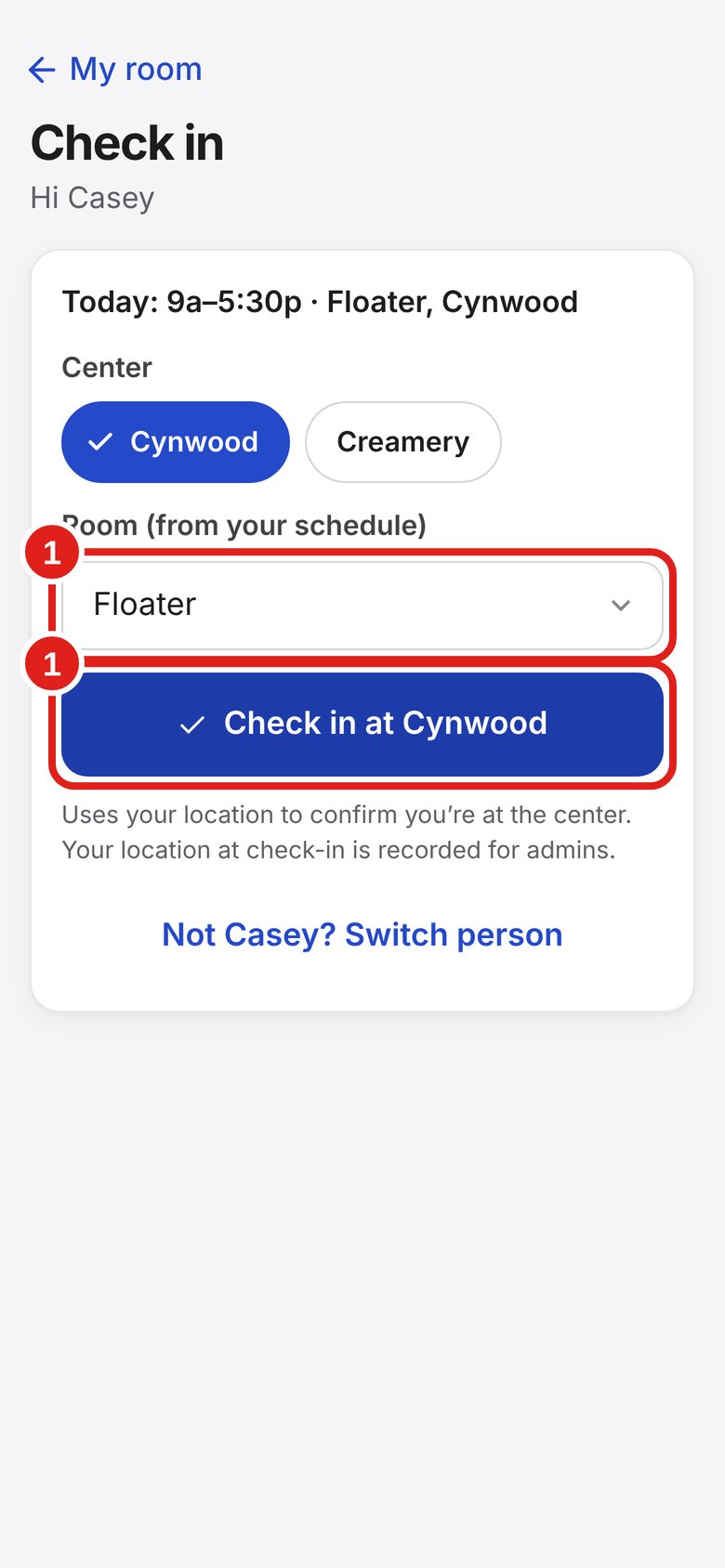
Check in like always. For Room, pick Floater.
Tap Check in.
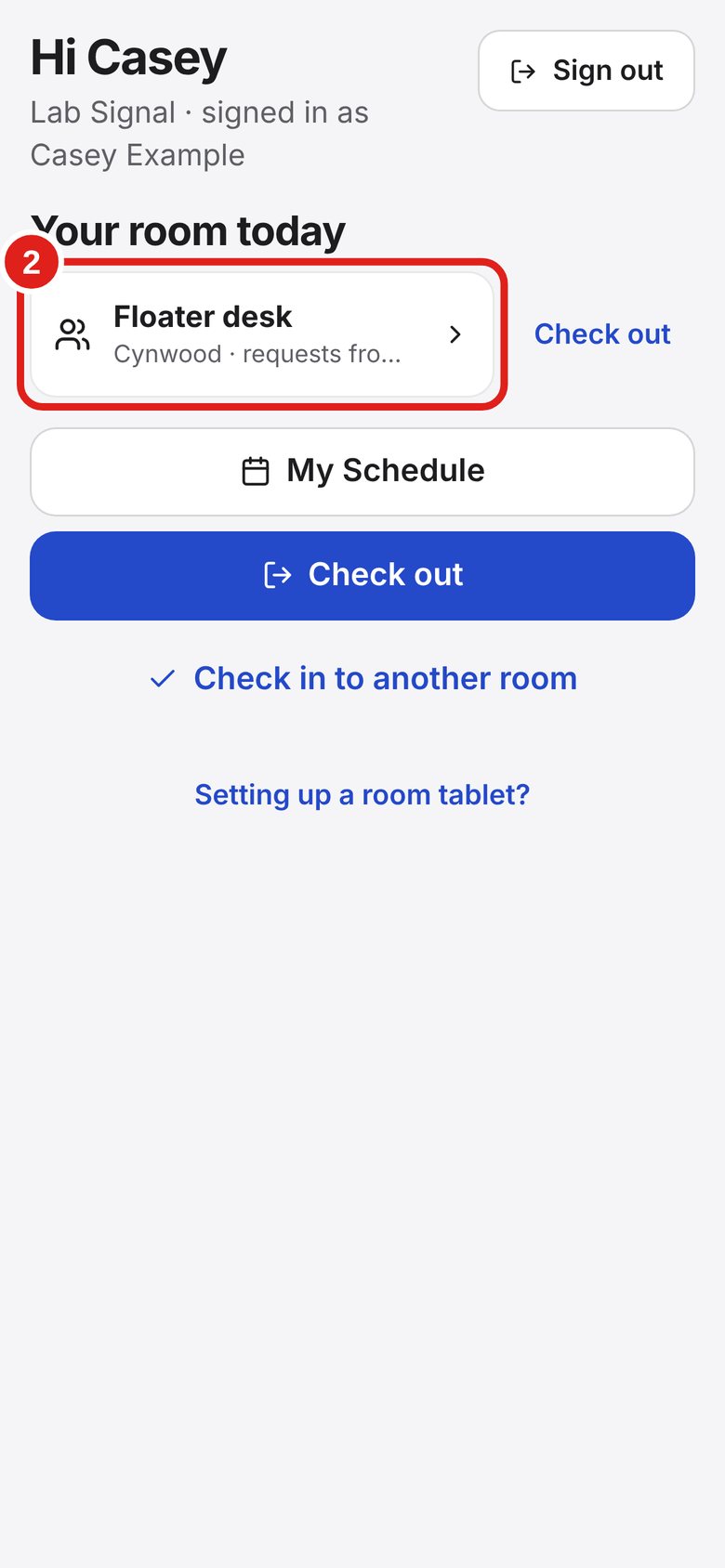
On My room, tap Floater desk.
At the top of the Floater desk, tap Turn on, then tap Allow.
Now your phone buzzes for every new cover, supply or extra-help request at your center while you are checked in as Floater. Tap the alert to open the Floater desk.
iPhone: this only works when you open Lab Signal from the Home Screen icon (see section 1).
When you check out, or 30 minutes after your shift, the alerts stop.
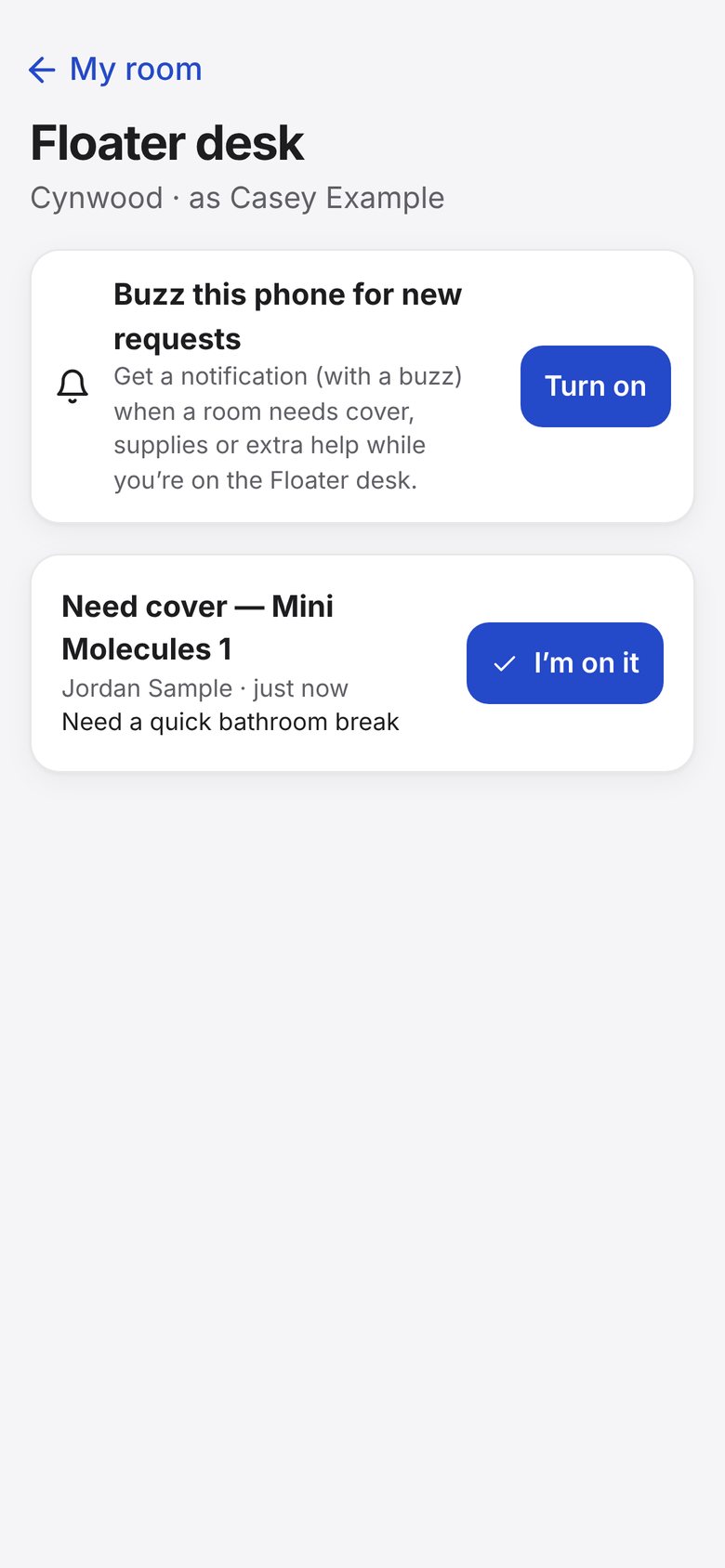
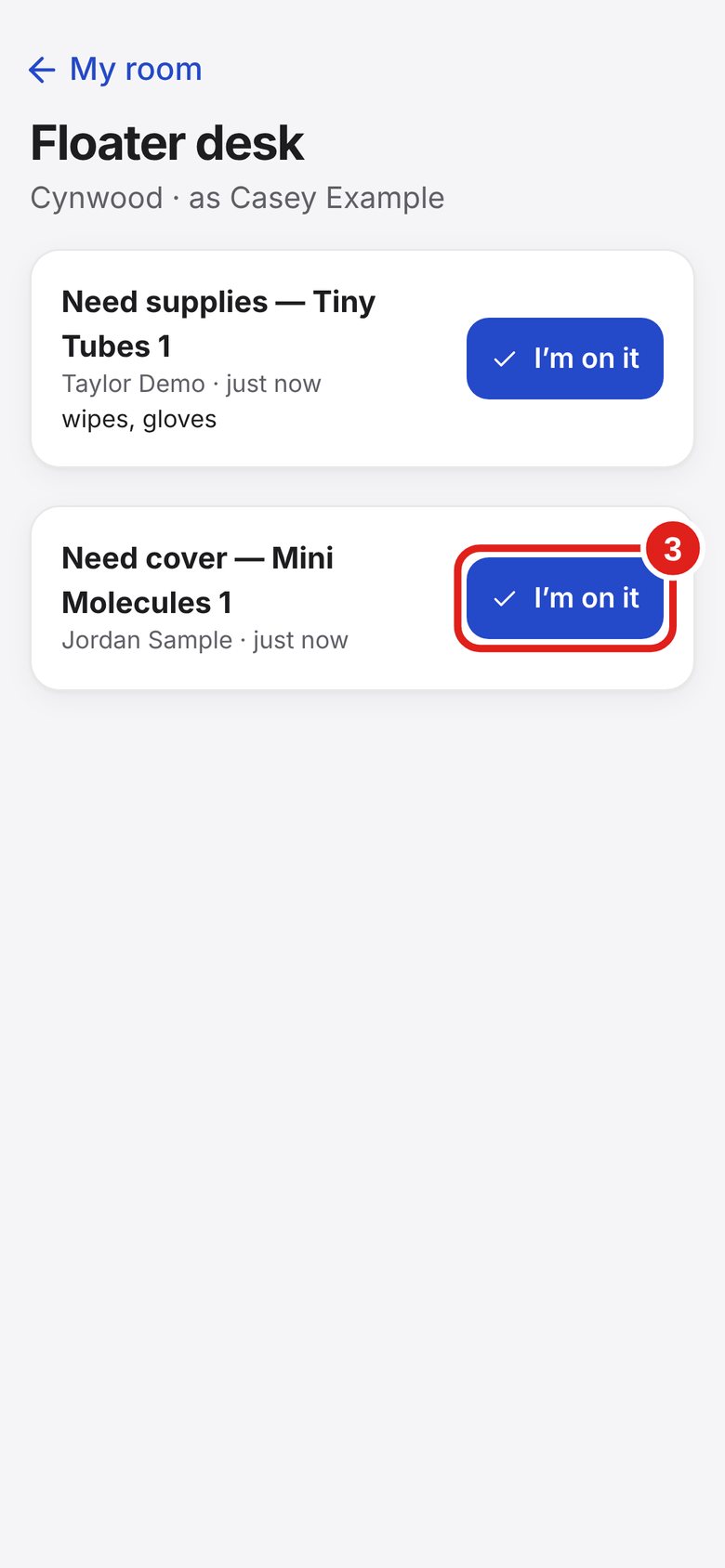
Requests from the rooms show here.
Tap I’m on it so the room knows you are coming.
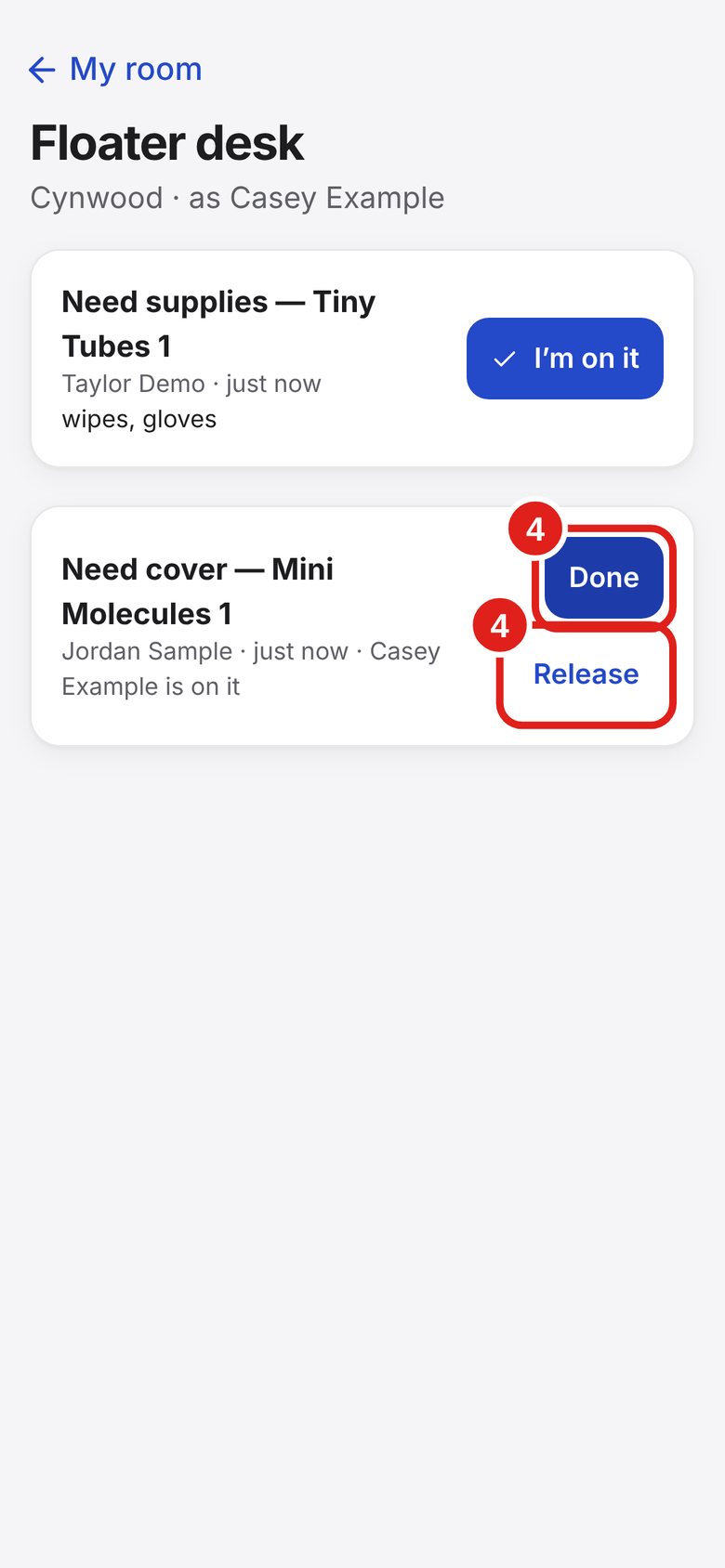
Tap Done when you are finished.
Can’t go after all? Tap Release so someone else can take it.
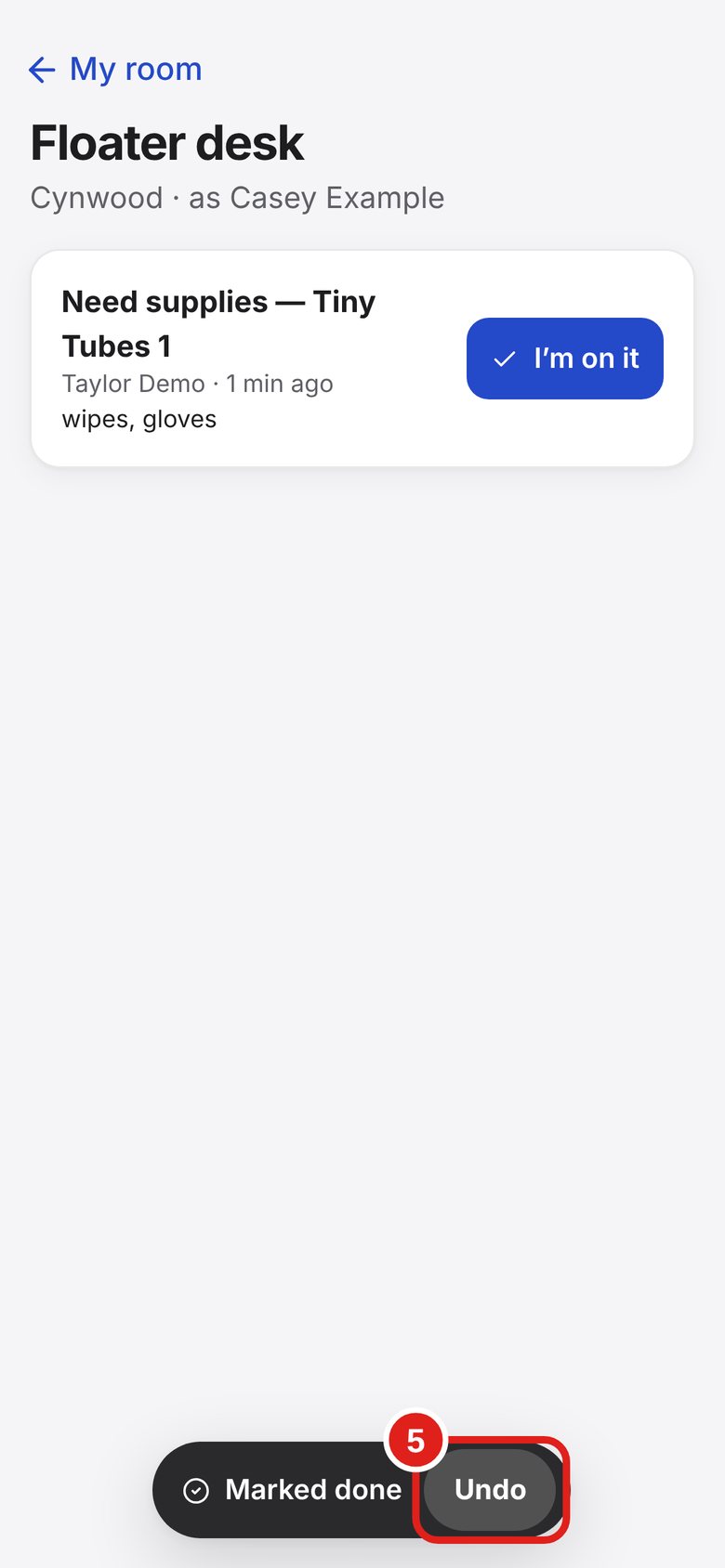
Tap Undo right away. It shows for about 20 seconds.
See your shifts and ask for time off. You can’t change shifts here — ask an admin.
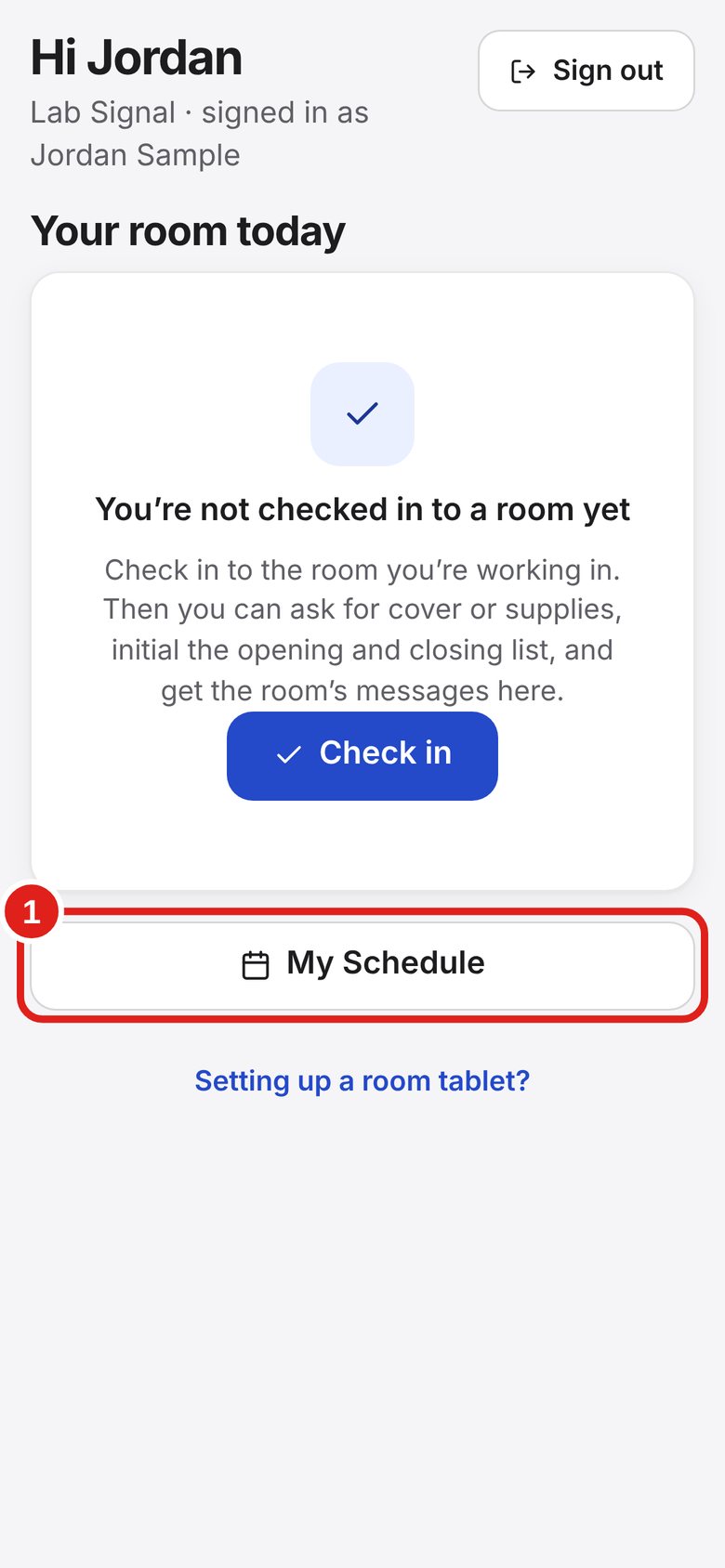
On My room, tap My Schedule.
(You can also tap “Open My Schedule” on the sign-in page.)
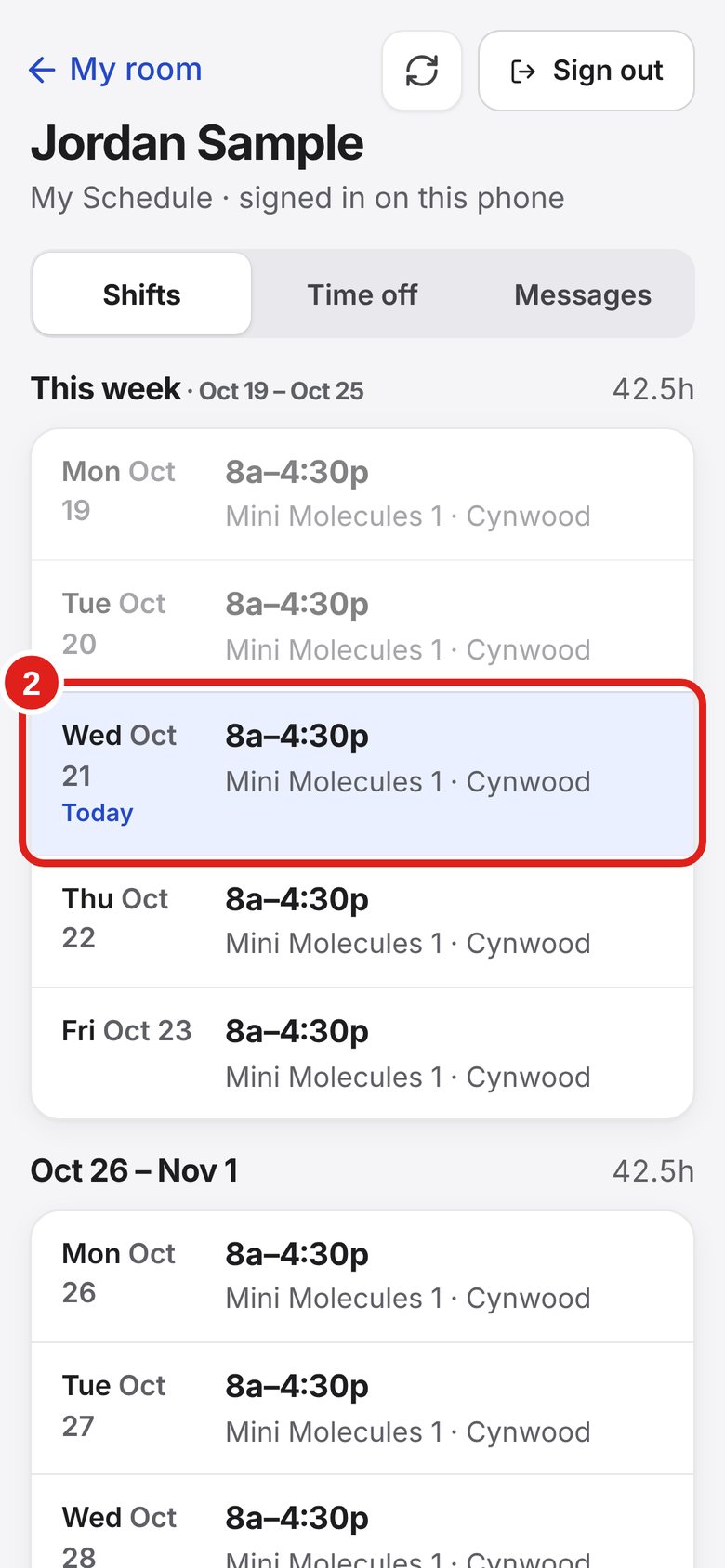
Shifts shows this week and the coming weeks.
Today is highlighted. New weeks show once the office posts them.
A “Training coming up” box means you have training due soon. Ask the office if you need help.
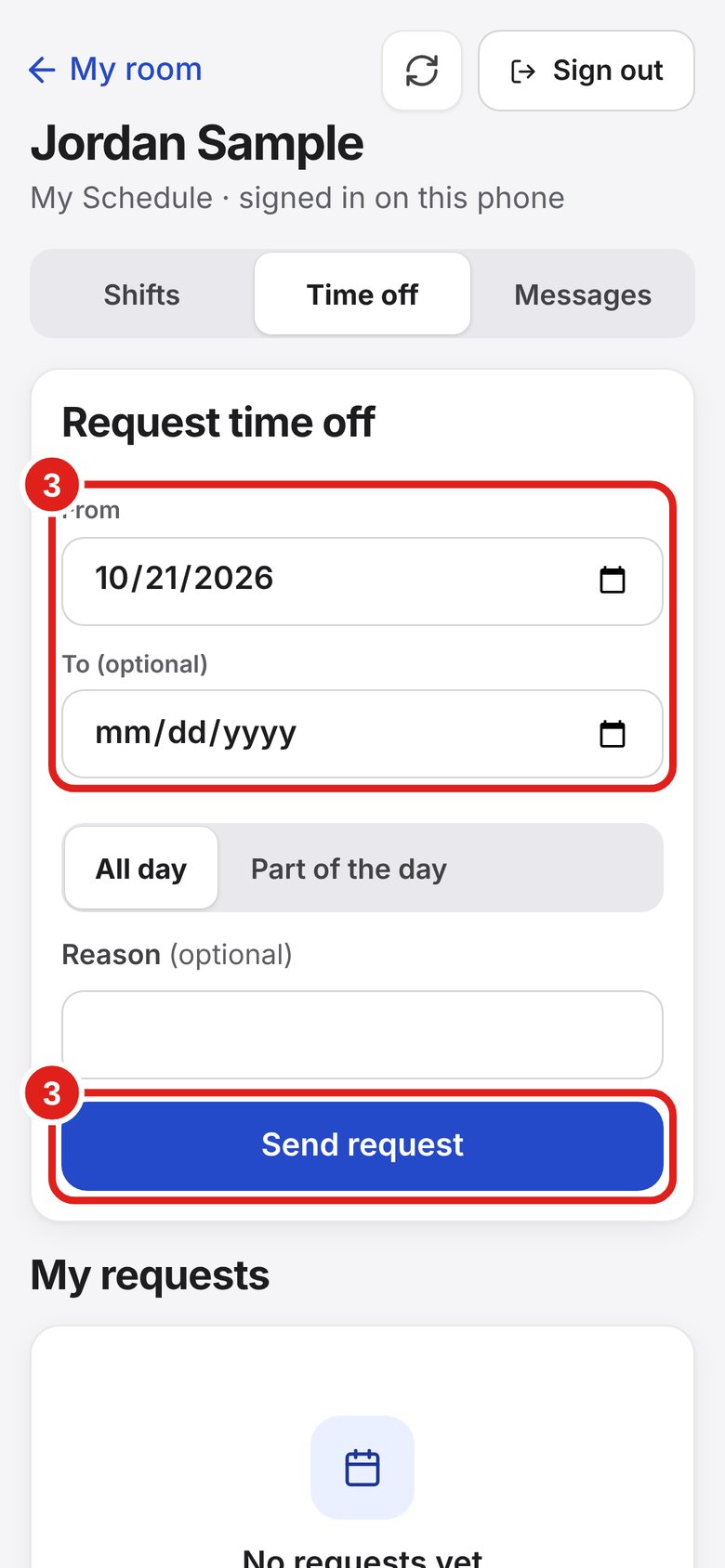
Tap Time off. Pick the date (and an end date if it’s more than one day).
Pick All day or Part of the day. Add a reason if you like.
Tap Send request. Your request shows as Pending until the office answers.
Changed your mind? While it says Pending, you can cancel it.
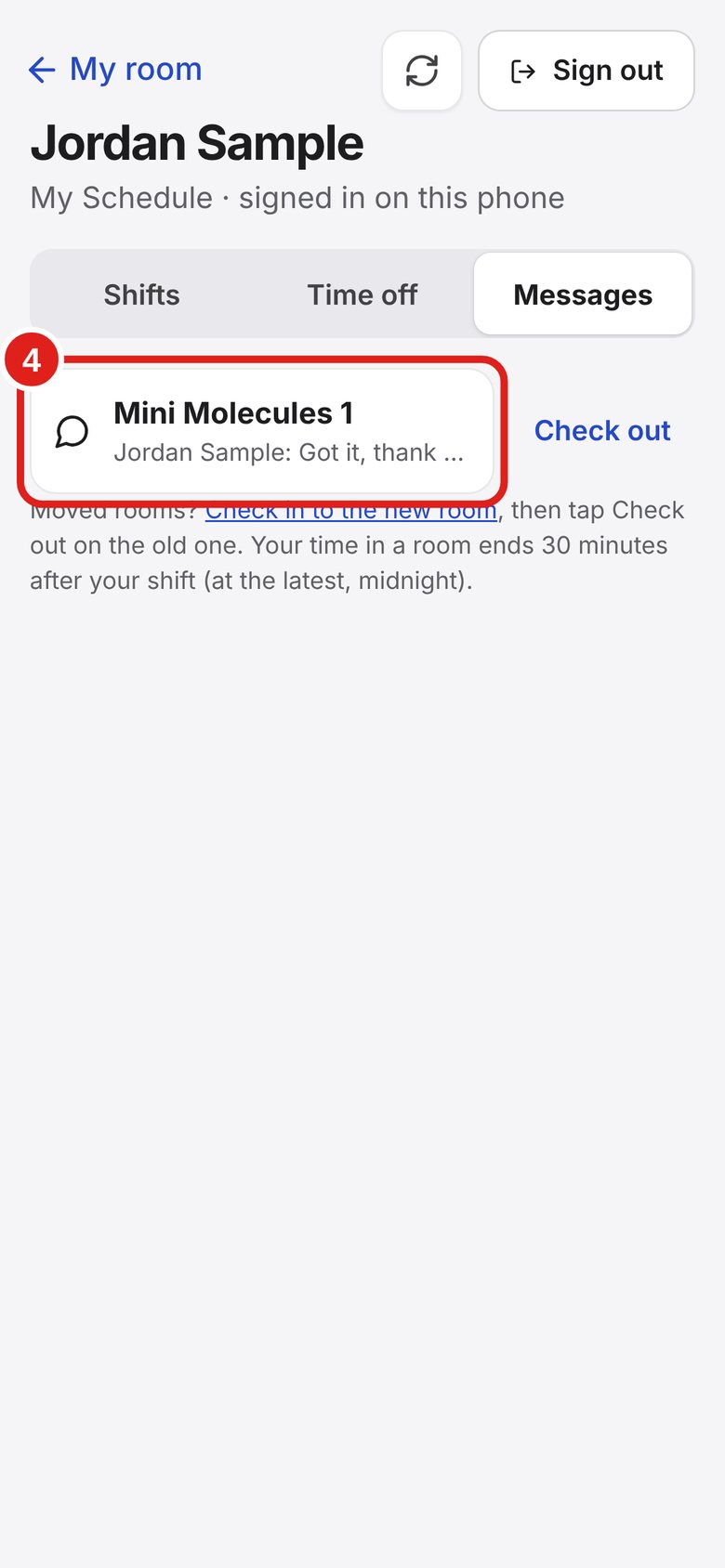
Tap Messages to see the rooms you are checked in to today.
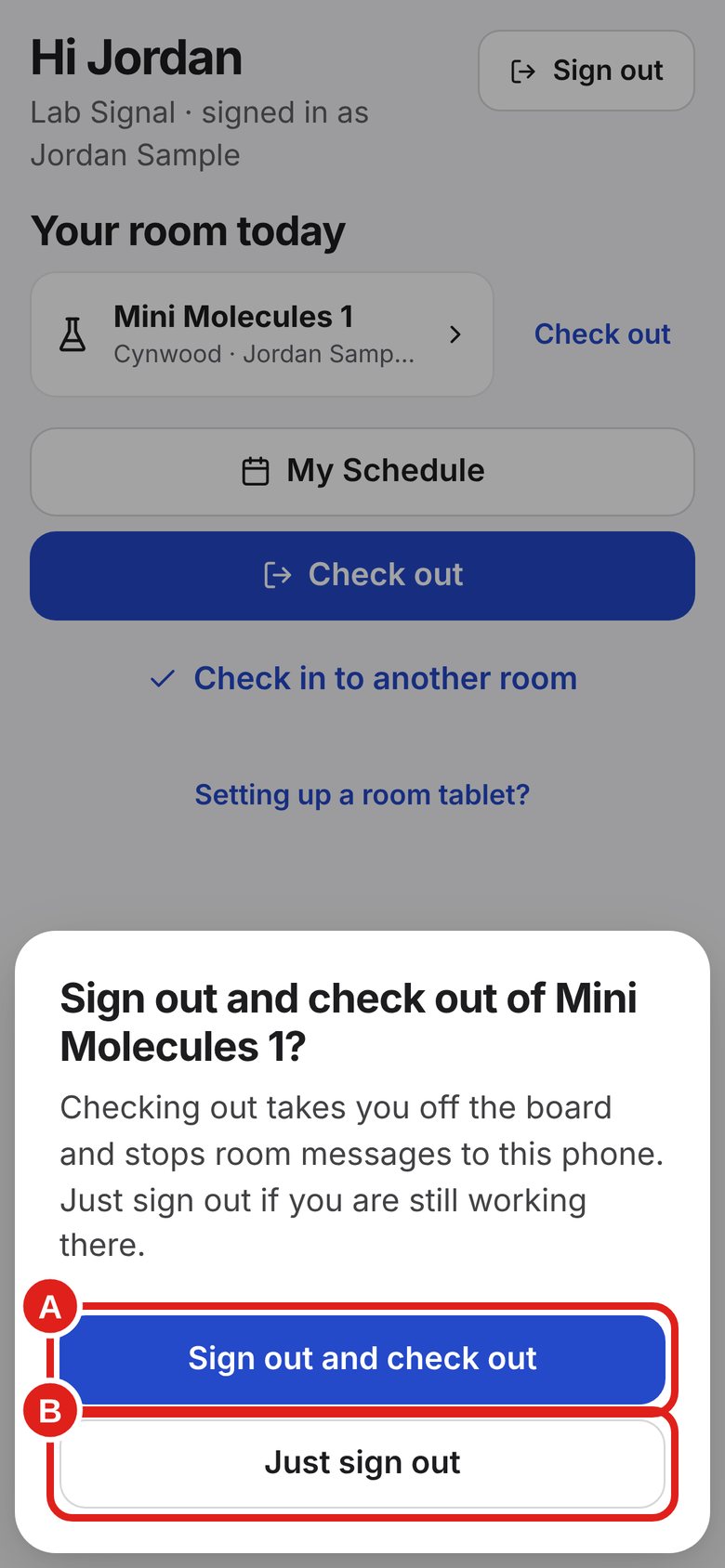
Check out = you leave a room (you come off the room list and its messages stop). Sign out = Lab Signal forgets you on this phone.
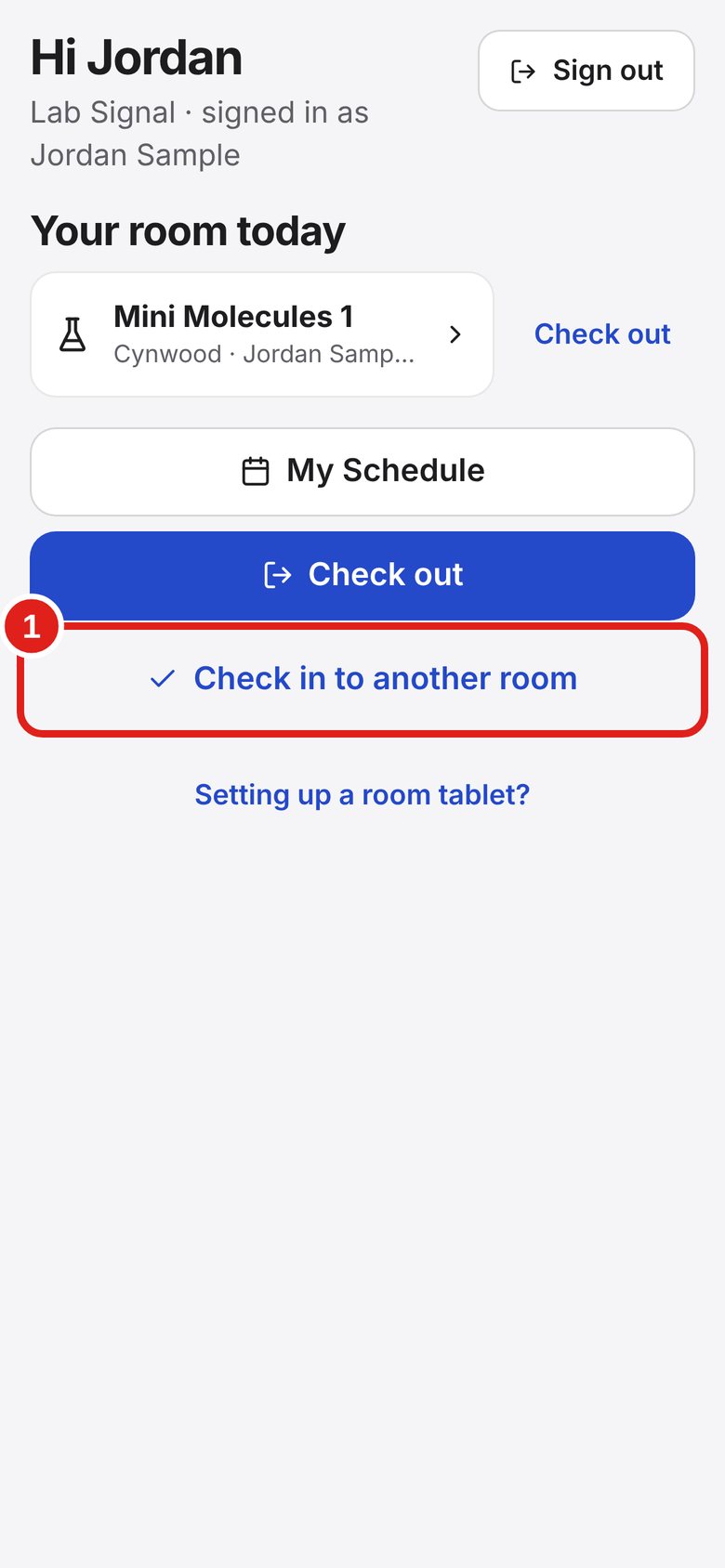
On My room, tap “Check in to another room” and check in to the new room.
Then, next to the old room, tap the small words “Check out”. Don’t tap the big blue “Check out of all rooms” button — that checks you out of every room.
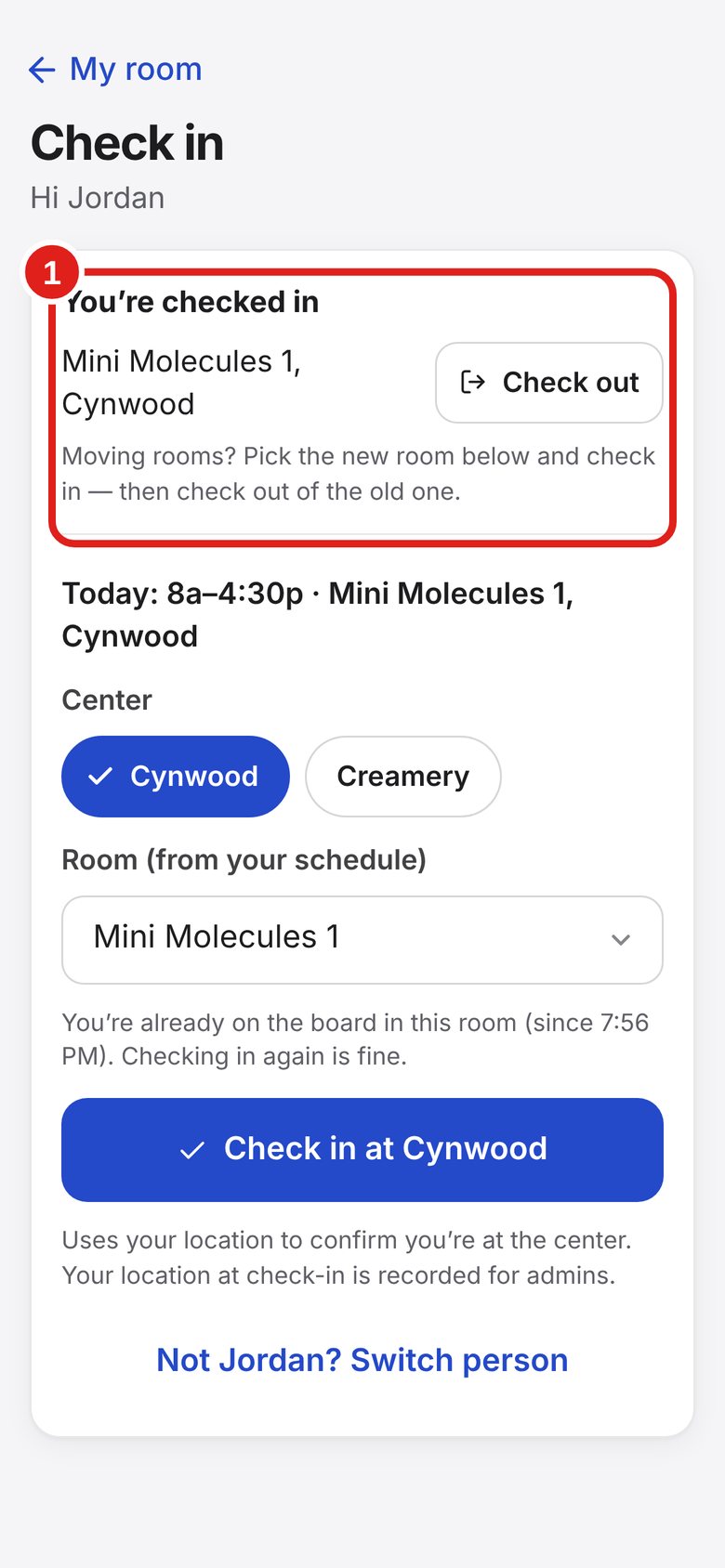
On My room, tap Check out next to the room.
Tap Check out again to confirm.
The big blue Check out button checks you out of all your rooms.
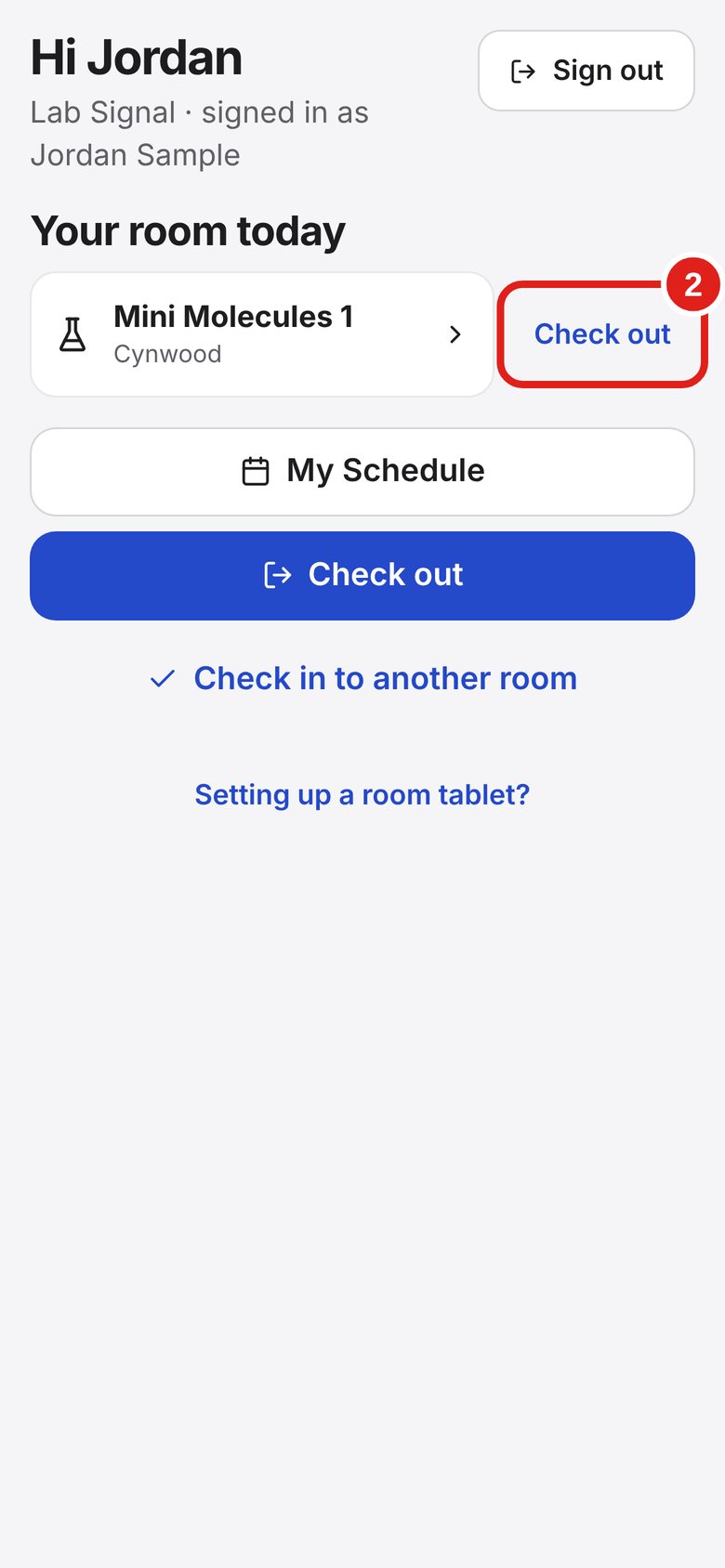
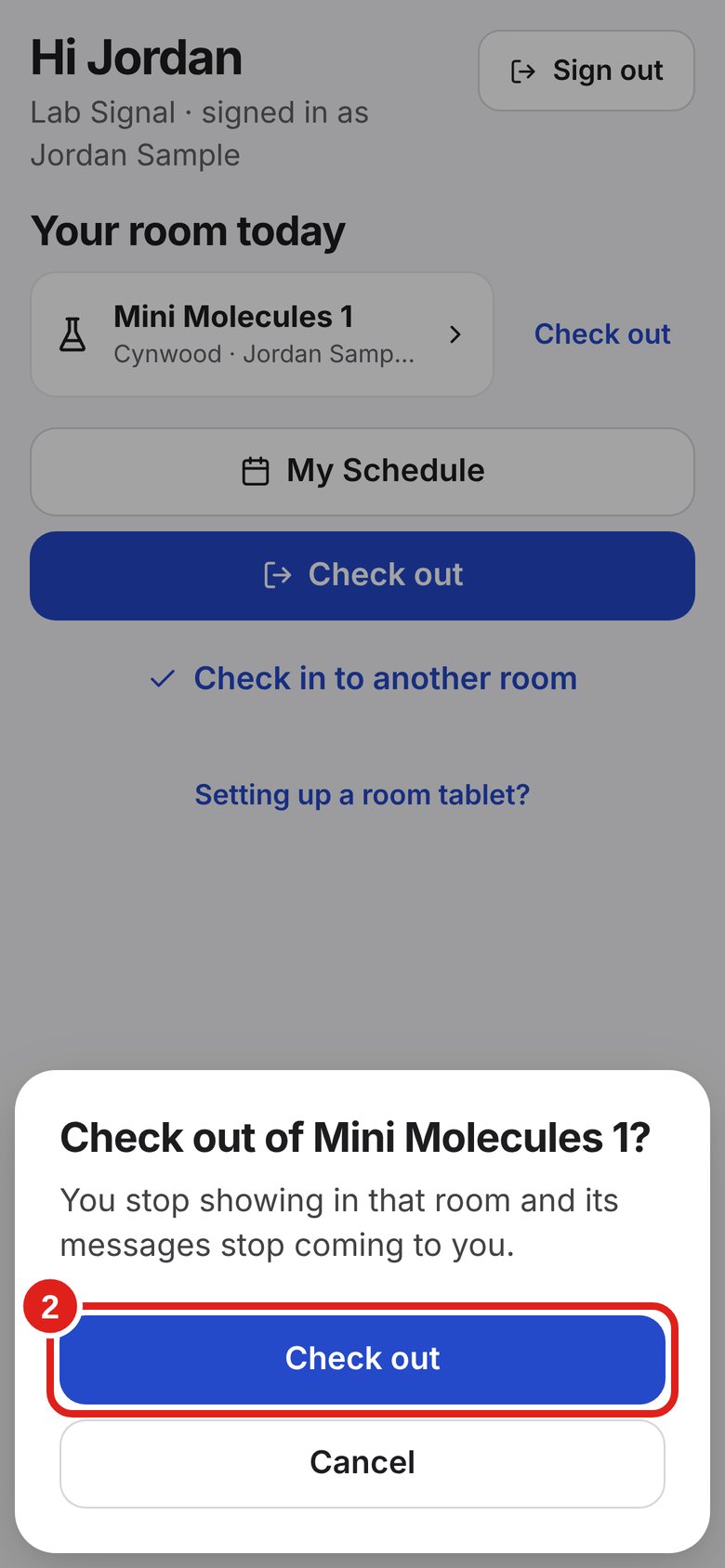
Leaving for the day? Tap Check out on My room. If you forget, it ends by itself 30 minutes after your shift (6:30 PM if you have no shift that day).
On your own phone you don’t have to sign out.
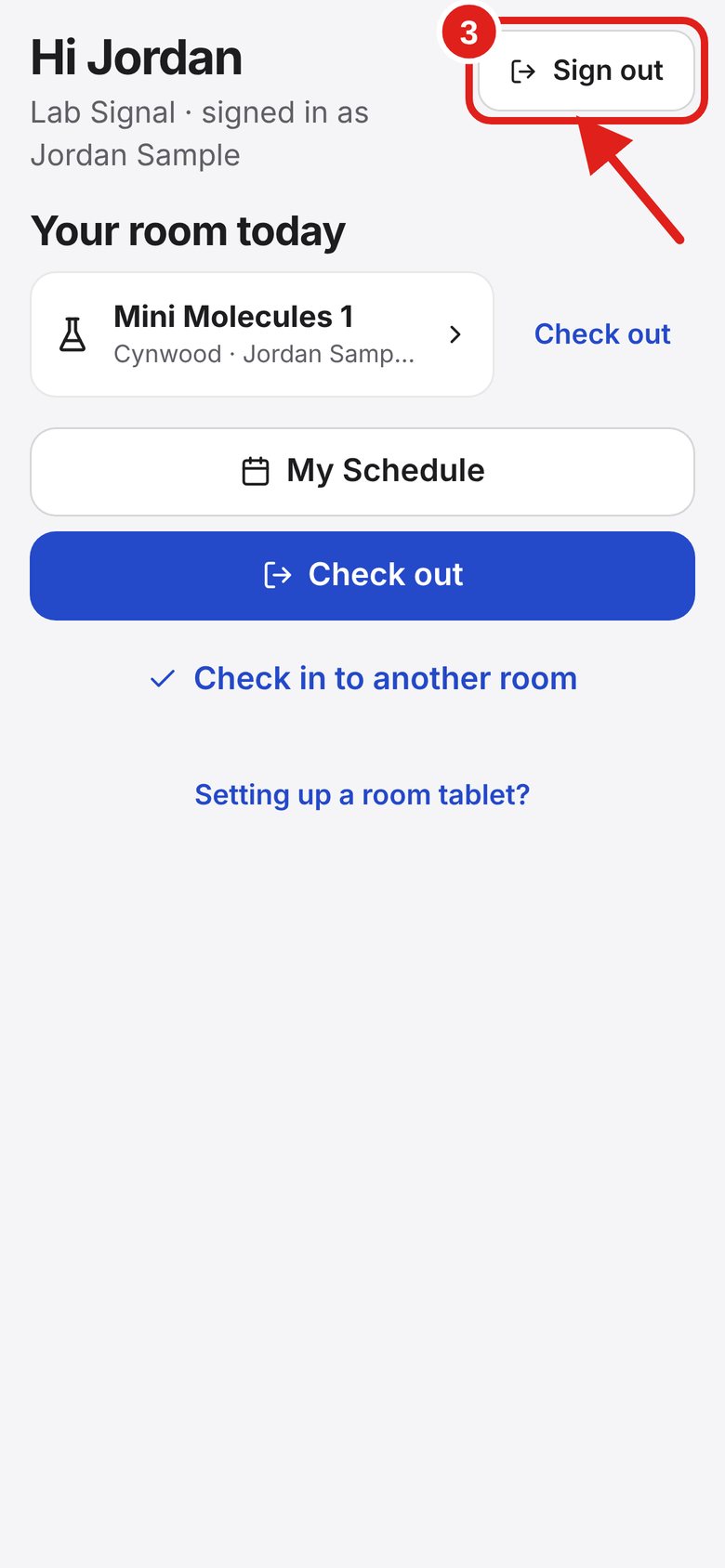
Borrowed phone? Tap Sign out on My room:
A — Sign out and check out: you are leaving.
B — Just sign out: you are still working there.
If it asks “Keep notifications on this phone?”: your own phone → Keep them. Borrowed phone → Turn them off.
Ask John or an admin. They can give you a new one.
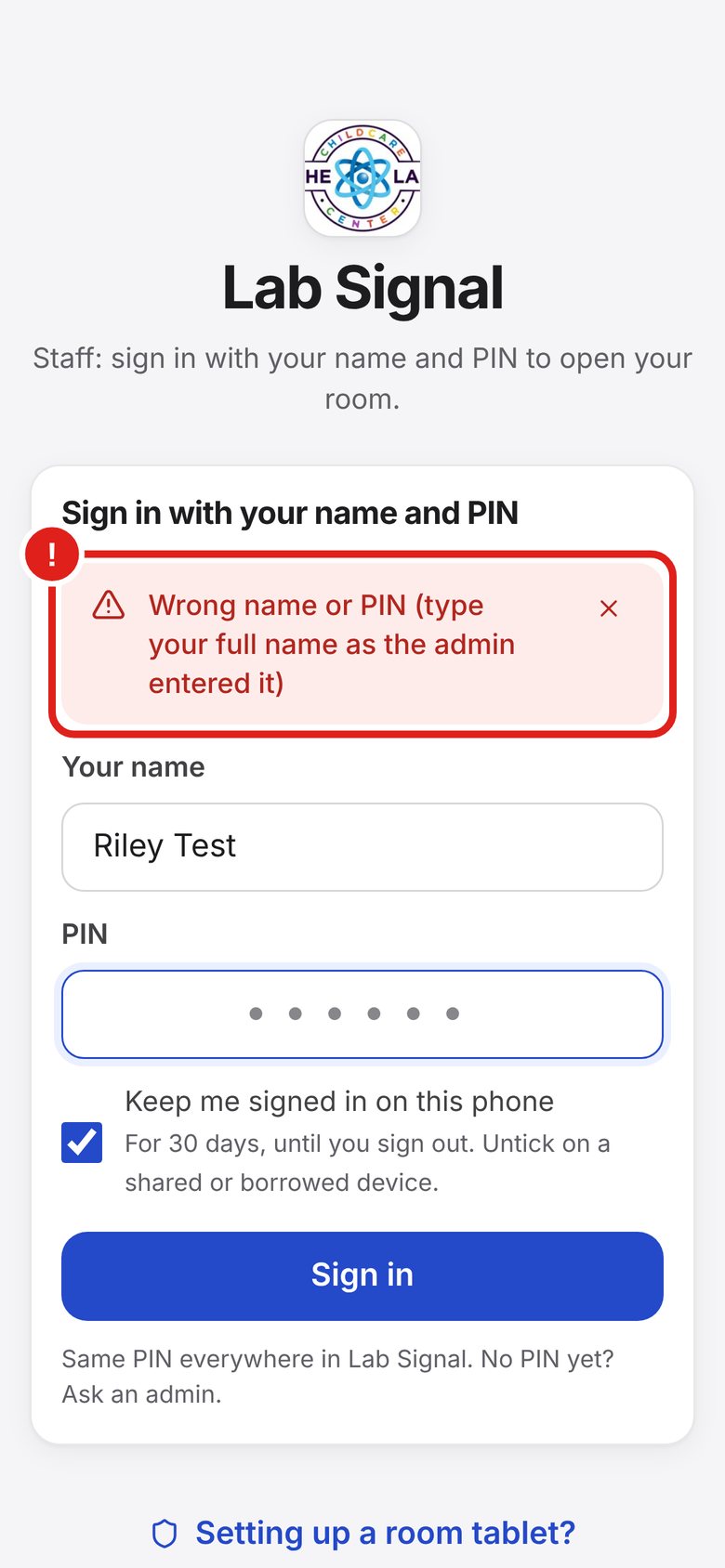
Type your full name the way John or the admin set it up (check the spelling). Then type your PIN again.
Wait the time it says (it can be a few hours), or ask John or an admin to reset your PIN.
Ask John for your new 6-digit PIN.
Type your PIN again. This happens about once a month.
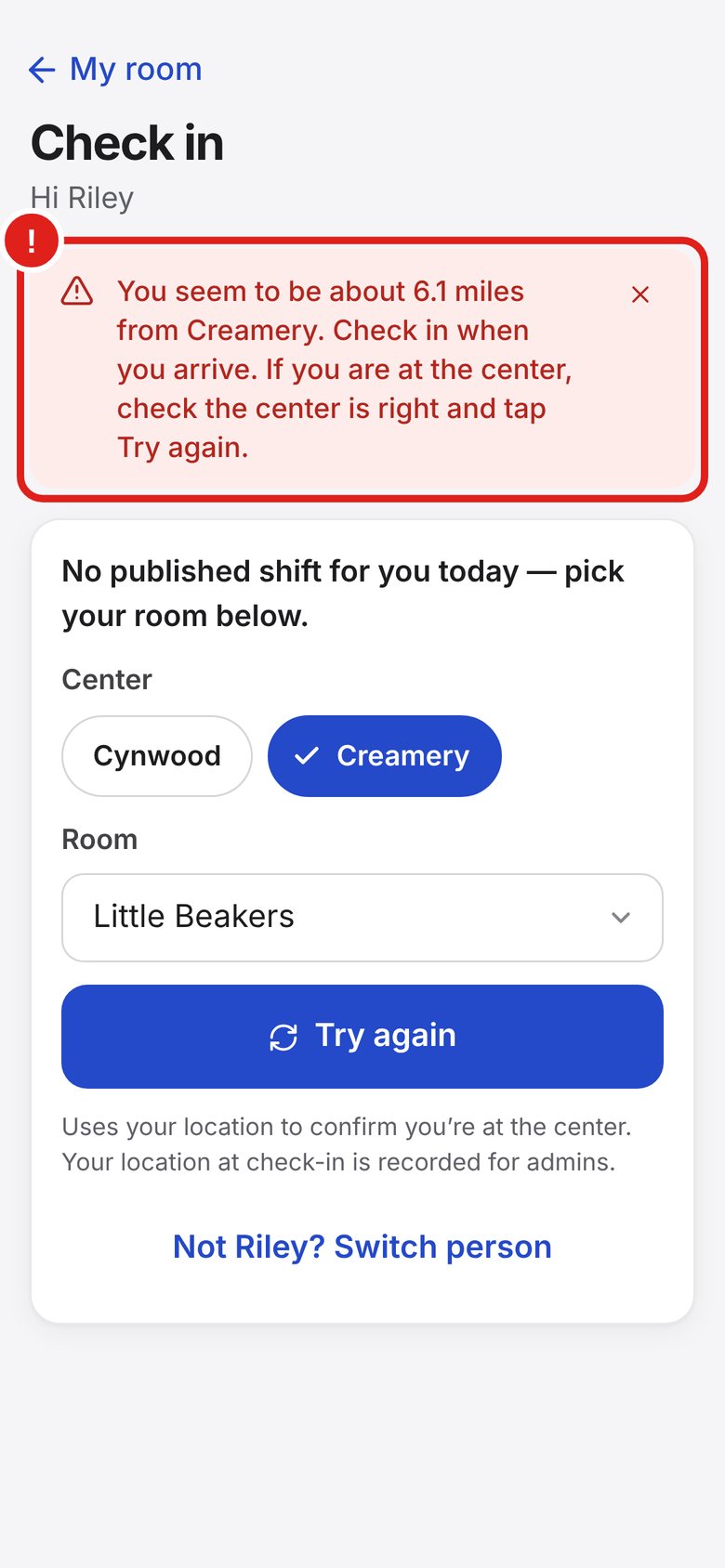
You must be at the center. Check you picked the right center (Cynwood or Creamery), then tap Try again.
iPhone: Settings → Privacy & Security → Location Services → On. Scroll down to Safari Websites → While Using the App, and turn Precise Location On. Go back to Lab Signal and tap Reload page after allowing location. Android: swipe down from the top of the screen and turn Location on. In Lab Signal, tap Reload page after allowing location, then tap Allow.
Turn on Wi-Fi. iPhone: Settings → Privacy & Security → Location Services → Safari Websites → turn Precise Location On. Wait a few seconds, then tap Try again.
Make sure Location is on. Stand near a window or step outside, then tap Try again.
Ask an admin to check you in from the office.
Close Lab Signal all the way (swipe it up and away), then open it again from the icon.
iPhone: open Lab Signal from the Home Screen icon, not Safari. Open Messages and tap Turn on, then Allow.
Check in as Floater, open the Floater desk and tap Turn on, then Allow (iPhone: open Lab Signal from the Home Screen icon first). Alerts only come while you are checked in as Floater. Also check that your phone is not on silent or Do Not Disturb.
iPhone: Settings → Notifications → Lab Signal → Allow Notifications on. Android: Settings → Notifications → Chrome (or Lab Signal) → on.
Check in to that room first. Messages only come while you are checked in.
That’s normal. Your check-in ends 30 minutes after your shift.
That’s for admins setting up classroom tablets. You can skip it. You never need a tablet code on your own phone.
Don’t tap it. Tell John or an admin.
Some things only John or an admin can do. Ask them to:
Keep this by the sign-in sheet or on your fridge.
Link: lab-float-assist.pages.dev · Never share your PIN · Questions? Ask John or an admin.